NFL Ravens Statistical Analysis #1: 3rd Down Conv. & Total Yards

In this post, we’ll be exploring how well two key offensive stats, Third Down Conversion Rate and Total Yards Gained, can predict whether the Baltimore Ravens won a game. We’ll use Logistic Regression, a standard statistical technique for binary outcomes, to model the probability of a win.

Preprocessing

This is the main folder with all Ravens data (Google Drive link). ‘Normalized’ is the full dataset, and the ‘WinBinary’ is the specific dataset we’ll be using for this analysis.

The data we’ll be using is the 2018-2024 seasons of the Baltimore Ravens which was taken from pro-football-reference.com. I aggregated all 7 seasons into one file which I’ll be using for other statistical analyses.

Since we’re only using a few features, there’s no point in us using the full dataset with dozens of columns when we only need a fraction of them. So what we’re gonna do is extract the columns ‘season’, ‘date’, ‘week’, ‘opp’, ‘total yards’, ‘3rd down made’, ‘3rd down attempted’, and ‘Result’. All of these will be placed into a separate spreadsheet so we can focus on the features relevant for this analysis.

Along with that, we’ll do some feature engineering where we create 2 more columns, WinBinary, and ThirdDownPct, which will also be included in our analysis. WinBinary will serve as a simplified column for the computer to read wins as 1 and losses as 0. Third down percentage can simply be calculated by dividing the third downs made by the third downs attempted.

Every time I try to import only using the file’s name, it doesn’t work. So I prefer to load the file in using the path link which includes the folder(s) the file sits in. You can do this by right-clicking the file in whatever folder it’s in, clicking ‘Copy as path’, then pasting it in the parentheses.

Make sure to include an ‘r’ just before the first quote of the file path. This is needed because Python recognizes backslashes (\) as a particular command and will thus misread the file path. The ‘r’ tells it they are a part of the file.

Preprocessing Code

The Logistic Regression Code

This is the full code of the logistic regression we’re implementing:

Line-By-Line Analysis

As always we’re gonna start with importing the Pandas library, the staple for data manipulation.

Next we import NumPy, which is used for advanced math calculations. Anytime you see ‘np.’ in the code, that’s NumPy being called.

The next NumPy line uses a ‘.linalg’ submodule for linear algebra and also imports ‘inv’ for the matrix inverse function. This will be used in the Newton-Raphson iterations.

Next we import matplotlib which is the standard library for visualizations. In the last section of the code we’ll see lots of ‘plt.’ which is the command for the visualizations/graphs we’ll be doing.

Seaborn is simplified subset of matplotlib that’s specialized for custom graphs. ‘sns’ is its shorthand command.

Statsmodels API is the main library that’ll be used for the logistic regression.

And lastly we’re importing two special visualizations from the sci-kit learn library, confusion matrix and calibration curve.

We load in our 7-season spreadsheet file. We’re using a csv format instead of xlsx since csv’s load much faster, even though they take up more space. ‘df’ stands for DataFrame which is pandas’ own form of spreadsheet that it will hold our dataset in. ‘df’ is just a common sense variable name we’re using, but it can be what ever you want it to be. Any time you see ‘df’ in this script, that means we’re calling our dataset.

We use the ‘X’ variable to declare our selected quantitative predictors, ‘ThirdDownPct’ and ‘TotalYards’. ‘df’ calls for our dataset that has these features, and of course the brackets contains them into a subset to ensure those are the only features that are focused on. These are our independent variables.

In the next line, we use the ‘sm’ alias which calls the statsmodels.api library that we imported. We follow that with ‘add_constant'(X). This assigns a column of 1s into the subset we just made so the model can learn an intercept term, which is a baseline prediction if all other variables are at 0. If we did not do this, the model would assume the probability of winning is 0.5 even if both of those features are 0, which is unrealistic. You are absolutely not winning a game with 0 total yards and you’re super unlikely to win with 0 third down conversions.

Then we declare our response vector, which is ‘WinBinary’. The model will recognize wins as 1 and losses as 0. This is vital for logistic regression since we’re working with binary either-or outcomes

This is the actual initialization of logistic regression. Everything after this will be tuning the model. We’ll use common sense and call this variable ‘model’. Again, we use ‘sm’ to call for the statsmodels.api module, and we access the Logit class inside of it which is literally logistic regression. We set the argument y and X for our binary response vector and our design matrix with our predictors that we just went over. The model is currently unfitted, so we then follow with the ‘.fit’ method which applies maximum likelihood estimation (MLE) to find the optimal Ξ² coefficients (intercept and slopes) that maximize the probability of observing the given outcomes. Again, MLE maximizes the likelihood function, but in this case, we’re use negative log-likelihood since this model is using the Newton-Raphson optimization algorithm which minimizes the functions. The method also displays the current function value which is the negative log-likelihood at the final iteration which is called convergence. Convergence is simply when the optimization algorithm has reached a point where updates to the Ξ² coefficient are so small there’s no noticeable difference in the negative log-likelihood.

This will output the results of the model’s implementation

In the same way we selected our two features a few lines back, this line does the same, except it’s creating a new feature since ‘PredictedProbability’ is not already in it. On the right side of this line, we call our ‘model’ variable and use a ‘.predict’ method with it which will return the predicted probabilities, which is the primary result we’re looking for. We want to see the probability of a win given our selected features. This line is set up to establish that output for us when the analysis is done. And lastly, we use ‘X’ as an argument since that is the variable that contains our two selected features, ThirdDownPct and TotalYards.

We’re creating a new column called ‘PredictedBin’ that will hold the results of the predicted probabilities as they’re categorized into various intervals.

We assign that to a pandas’ method called ‘.cut’ which converts continuous numerical data into discrete categories. Its argument will be ‘PredictedProbability’. Since probability is by default continuous (ranging from 0-1), we are binning it into intervals (0.1, 0.2, etc). The second argument uses a NumPy array of those intervals, which are the bin’s edges. 0 is where the bin will start, 1.1 is where it will go up to but not include, so it’ll actually stop at 1.0, and 0.1 is the increment it will go up each time (0.1, 0.2, 0.3,…)

Though not specified in the code, the ‘arange’ method by default is a half-open arrange, meaning the argument does not include the edges as we just went over. This helps avoid overlapping intervals in the case where if we had bins 0.0-0.1 and 0.1-0.2, then where would 0.1 go?

Lastly, the ‘include_lowest’ line simply ensures that 0.0, the lowest value is included in the first bin. Otherwise it’d be starting at 0.1.

We’ll name this variable ‘calibration’ which will observe how well the predicted probabilities are aligned with the actual outcomes. The ‘groupby’ method will point this function to our full DataFrame along with the ‘PredictedBin’ column we just created, and it groups each row by bin label (0-10%, 10-20%, …, 90-100%).

Each bin will have two calculated values. The first will be ‘ActualWinRate’ which will contain the ‘WinBinary’ and the mean proportion of those wins. Meaning if 7 out of 10 games were wins, that’s a 70% win rate for that particular bin. Then there’s ‘AvgPredicted’ which tells you what the model thought the average win probability was for that group. The features ‘PredictedProbability’ and, again, the mean will be used in this bin.

Lastly the ‘.reset_index()’ will convert the grouped result back into a flat DataFrame with ‘PredictedBin’ as a regular column. Remember we had to create that column, so making it a regular column and not an addition will make for better plotting.

Lastly we’re going to print the results of the first 3 games which we’ll be using in our math breakdown later.

Tracking the Newton-Raphson Iterations

This next section of the code will track the Newton-Raphson iterations that will illustrate the ‘learning’ part of machine learning. What we’ll be seeing is how the coefficients update with each iteration until they’re as accurate as possible.

I recommend skipping ahead to the mathematical breakdown of the Newton-Raphson algorithm so you can see what’s going on under the hood. I will NOT be doing a line-by-line analysis of this section as it isn’t necessary for the model to run. I only included it to illustrate how the algorithm works through the iterations.

Math Breakdown

Step 1: Define the Model

Our goal is to measure the probability of the Ravens getting a win based on their 3rd down conversion rate and total yards in a game. The outcome of a game is binary, either a win or a loss. Since it’s binary, we are classifying wins as 1 and losses as 0.

We have our two predictor variables:

  • x1: 3rd down conversion percentage
  • x2: total offensive yards gained

And our response variable yi:

  • y: the outcome, a win or loss
  • i: the given game that’s being evaluated

Logistic regression models the probability of a win as: p(y=1 | x1, x2) = ?

What is the probability the Ravens will a game given the conditions of 3rd down conversion rate and total yards gained?

This probability is determined by three coefficients:

  • Ξ²0​: Intercept (baseline log-odds when the predictors’ values are 0).
  • Ξ²1​: effect of 3rd down conversion percentage on log-odds
  • Ξ²2​: effect of total yards on​ log-odds

Together, these form the linear combination: z = Ξ²0​ + Ξ²1x1 + Ξ²2x2

The z value represents the log-odds of winning. Log-odds are the raw scores that the logistic regression model is calculating; it’s the dough before the bread. On the surface, the numbers displayed by log-odds have little meaning, but just know that they’re necessary for determining the probability as precisely as possible. We will later transform the log-odds into a readable probability (good ole percentages) using the sigmoid function.

Step 2: Linear Combination

Once we’ve defined our model and variables, the first actual calculation logistic regression makes is the linear combination of predictors:

z = Ξ²0 ​+ Ξ²1​x1 ​+ Ξ²2​x2​

We just went over z, which is the raw log-odds; the uninterpretable version of the probability.

  • Ξ²0​: Intercept (baseline log-odds when the predictors’ values are 0).
  • Ξ²1​: effect of 3rd down conversion percentage on log-odds
  • Ξ²2​: effect of total yards on​ log-odds

The x-variables remain their assigned values, and the Ξ²-variables are the coefficients of the x-variables. A coefficient (also called ‘weights’) is the variable’s ‘effect’ on log-odds of winning.

We’re essentially weighing each variable by how much it impacts the outcome of a game, particularly on a logarithmic odds scale.

The coefficients are calculated from the MLE application to the dataset, which includes all games. It tries to match the predicted probabilities to the actual wins and losses, testing its effectiveness. Of course it’s not perfect, but it gets as close as possible, hence probability.

One thing that took me a long time to finally realize, is that these coefficients are not calculated in a conventional algebraic form. It’s not like we have a cookie-cutter equation where we plug the values into the variables and simply solve, it doesn’t work that way in this case. These coefficients are results from an iterative algorithm called Newton-Raphson.

Once we have the coefficient results, we plug them into the linear combination equation, then put that through the sigmoid function and the result of that gives us both the predicted probability with the actual outcome of each game.

Step 3: Logistic Function

Now that we have our log-odds scores (z) for each game, we need to transform them into something more useful: probabilities between 0 and 1.

This is where the sigmoid function comes in. The sigmoid takes any real number and β€œsquashes” it into a range between 0 and 1. It’s defined as:

Οƒ(z) = 1/1+ez “Sigma of z, or ‘Οƒ(z)’, means take the number z, make its negative, then raise Euler’s number e to that power. Add 1 to this result, then divide 1 by the total. The output is a number between 0 and 1, which represents the predicted probability of a Ravens win.”

A log-odds of 0 is a 50% chance of winning. A positive log-odds (z > 0) is greater than 50%, and a negative (z < 0) is less than. Going off of that principle alone can give us an idea of the chance, but we want to get more precise. Otherwise that’s no different from saying the Ravens are more or less likely to win.

Let’s apply the log-odds from the first 3 games to the sigmoid function and see if the resulting predicted probability matches the one in the output

Euler’s number is 2.718281 and infinitely continues, but we’ll stick with 6 decimal places. We set that to the power of our log-odds 0.754583, whose result is 0.470206, which we’ll round to 0.4702. That was the hard part. Now we plug that into the sigmoid function:

1/1+0.4702 = 1/1.4702 = 0.680179, which is just about the same as the computer’s calculation of 0.680176. That only happened since different calculators have their own rounding errors. Regardless, both numbers round to 68%

So now that we’ve used the sigmoid function to get our predicted probabilities, how do we know if our model’s predictions are any good?

Step 4: Likelihood Function

The linear combo gave us the log odds, we put the log odds into the sigmoid, then take the result of the sigmoid, which is the predicted probability, and put that through the likelihood function.

With the likelihood function, we’re measuring how likely the model (with its predictions) were matched to the actual game outcomes

All we’re doing is taking the predicted probability of each game. If the game was a win, the probability stays. If the game was a loss, we subtract that probability from 1. For example, Game 2’s probability was 0.7442. So since that game was a loss, we subtract that 1 – 0.7442 which results in 0.2558.

We calculate the likelihood of observing all the real outcomes using the predicted probabilities. The ‘L’ is the likelihood function which multiplies the chance of every outcome. The ‘∏’ is the product notation which multiplies terms for all the games i=1 to n.

We take the likelihood terms of every game, multiply them, and the product will be our final likelihood function. Which leads us to our next issue:

Step 5: Log-Likelihood

Once we multiply all of those likelihood terms, which are small decimals, our resulting number will be a very small decimal only a few steps away from 0. Something like 0.00000841, which isn’t interpretable.
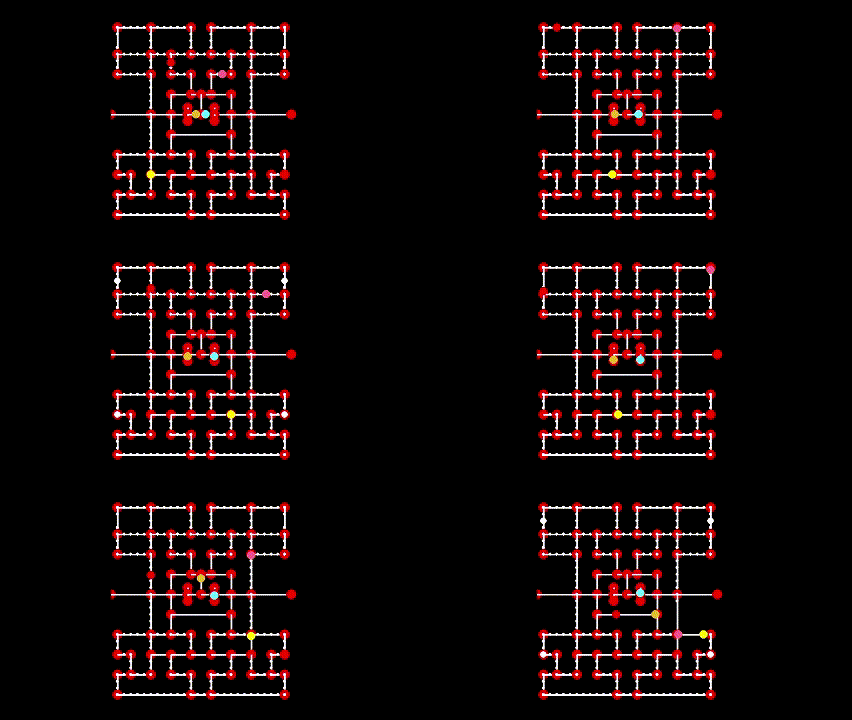
This is where log-likelihood comes in. This converts the likelihood function into a ‘real’ number that we can do something with.

We’re not gonna get into the deep math of log since it gets messy. We just need to understand its function. Log is basically the opposite of an exponent.

It must be noted that we’re using natural log, not base-10 log. Most calculators’ ‘log’ symbol uses base-10. Make sure you’re using natural log, symbol shown as ‘ln’, before you make that calculation.

So yup. We just take the log-likelihood of each game, add them all together, then our sum is our total log-likelihood

Now that we have the total log-likelihood, which is -64.881, what do we do with it? We test its significance against our log-likelihood of the null model, which is -73.365. We do this by calculating the pseudo-R2 formula which will be the quotient of the LL/LL-null subtracted from 1. The quotient is 0.8844, which subtracted from 1 equals 0.1156.

The ultimate answer is that our model improves log-likelihood by 11.56% compared to the null model. This means our application of two variables to predict a win is somewhat impactful, but of course not a lot. As a rule of thumb in McFadden’s R2, 0.2 – 0.4 is the ideal range for a well fitting model. Below 0.1 is a weak fit which isn’t much different from guessing, and over 0.4 is ‘too’ confident which usually means an error was made in the analysis. So our 0.1156 is, admittedly, a little underwhelming.

Gradient (1st derivative)

For each of the 3 coefficients, we first compute the residual, which is the win binary (1 or 0) minus the predicted win probability, then multiply the residual by the respective feature’s value

Let’s say Game 1 had a 3rd down % of 0.45, total yards of 340, it was a win (which denotes a 1), and the predicted probability was 0.7003. The residual is the win binary minus the predicted probability (yi – Ο€i), 1 – 0.7003 which equals our residual of 0.2997. If the game’s outcome was a loss, it’d be 0 – 0.7003. This is what we are doing for all games.

Once we have all the games’ residuals, we then take them and, in separate equations, multiply them by each feature. So first for the intercept, we multiply every residual by a simple 1; which is 1(0.2997) for Game 1. For the 3rd down pct, we multiply each residual by the respective game’s value for that, which was 0.45 for Game 1. So that’d by 0.45(0.2997) for just Game 1. And we do the same for the total yards, which was 340 for Game 1, making 340(0.2997).

With each feature as its own equation, we do these calculations for all games, and simply add them all together. The resulting answer, our gradient vector, will be a matrix with the 3 sums stacked on top each other.

Hessian (2nd derivative)

The Hessian tells us how fast the gradient is changing with respect to the coefficients. In other words, while the gradient points us in the right direction, the Hessian tells us how steep or flat the surface is, so we can adjust our step size.

In doing this, we build a weight matrix (W)

Each element of W is a game’s predicted probability multiplied by its complement. The complement simply being the predicted prob subtracted from 1. So since Game 1’s predicted prob was 0.7003, its complement is 0.2997, which, when multiplied, equals 0.2099, the ‘weight’ of Game 1.

We put Game 1’s weight against a matrix of the features which are multiplied within each other

This is the matrix for Game 1. We do this for all games, add all of their matrices, and the result will be a final matrix of the same size, but it’ll contain the sums of all the games.

All of this happens under the table, so we won’t be seeing that final matrix.

Newton-Raphson Algorithm

The whole math process we just did is recalculated with each iteration

We are iterating (or updating) the coefficients (Ξ²) to be more accurate. A loop of sorts

The first iteration treats all 3 coefficients as [0,0,0] as a baseline. This means the model has no prior knowledge of previous game data, which means the probability can’t be anything more than a wild guess, which is 50%; they may win, they may not. This makes the model blatantly wrong.

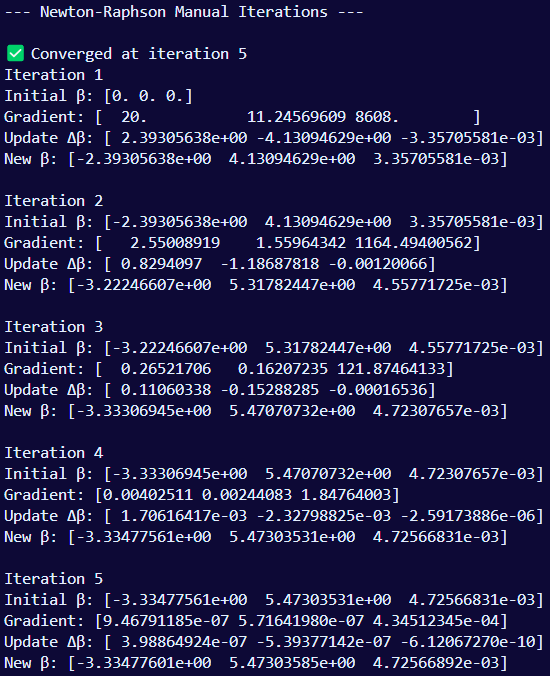
In the first iteration, we take the gradient and compare the predicted probability (which is 0.5 for everything right now) with the actual outcomes for each game. The residuals are large since the model is ignorant. Then we calculate the Hessian which measures how confident the model was in its predictions. Once those two derivatives are computed, the algorithm updates the coefficients to be more accurate. These iterations happen repeatedly until the updates don’t change any more, meaning it’s gotten as accurate as possible, which is convergence. All of this is happening under the hood, there’s nothing in the outputted results that shows how much the updates have changed. We only know it did its job because of ‘converged’ showing ‘True’. Yet I included a section where we track the iterations so we can see them update in real time.

Tracking the Iterations

Again, in the first iteration, the model starts all the coefficients blindly at 0.

The updated coefficients after the first iteration is [-2.39, 4.13, 3.36]. After the second iteration, it goes to [-3.22, 5.32, 4.56]. There were a total of 5 iterations, so in the last one, which we have in our final output [-3.33, 5.47, 4.73].

We’re not going to get too deep into the math for this part.

Ξ²β‚€, the intercept, decreased from -2.39 in the first iteration to -3.33 in the final iteration. This shift downward helped balance the upward movement of the other two coefficients. Since the intercept reflects the baseline log-odds of winning when both predictors are 0, this drop means the model adjusted its baseline downward to compensate for the increasing influence of the actual predictors. It ensures that the predicted probabilities still stay within a realistic range (between 0 and 1) as the model becomes more confident in the features.

B1, 3rd down % increased significantly, jumping from 4.13 in the first iteration to 5.47 in the final iteration, which shows that it’s a strong predictor of winning.

B2, total yards, had a lesser, but still decent increase from 3.35 to 4.72, showing that it’s a moderate predictor of winning

Results Breakdown

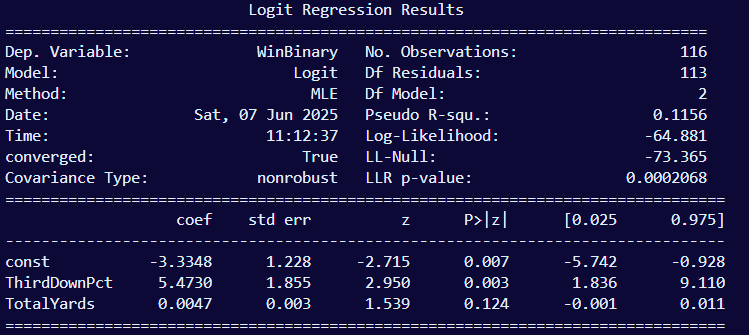
This is what outputs in the terminal after running the script.

Model Information

  • Dependent Variable: ‘WinBinary’; we’re predicting if 2 variables, 3rd down conversions and total yards in this case, predicts wins or losses, which is a pair of binary outcomes. 1 means win and 0 means loss
     
  • Model: ‘Logit’ which is shorthand for logistic regression
     
  • Method: ‘Maximum Likelihood Estimation (MLE)’
     
  • Date & Time: When this analysis was executed
     
  • Converged: The algorithm successfully found a set of coefficient values (Ξ²s) that maximize the log-likelihood function; this means the model is stable, hence why it says ‘True’. If it was ‘False’, that means the model is unstable which could be due to a number of factors
     
  • Covariance type: this measures how well the standard errors were calculated. ‘nonrobust’ is the default value, meaning the model is correctly specified and errors meet all assumptions.
     
  • No. Observations: The amount of observations in our data set; the games we’re taking data from, which is 116 since we’re doing the last 7 seasons
     
  • Degrees of freedom (Df Residuals): This value is the number of observations (116 games), minus the number of predictors (2, as showin in Df Model), minus an extra 1 to account for the intercept. This is not to say we’re ‘deleting’ 3 games, it’s that the predictors take away from the flexibility of the dataset. A rule of thumb for the Df Residual is you generally want it to be at least 50, ideally greater than 100. Less than 50 is dangerously unstable, and 100+ is very stable, thus more accurate.
     
  • Df Model: number of predictors used in the model. We’re only using 3rd down % and total yards, which is only 2 predictors

Fit Quality

  • Pseudo R-square: logistic regression does not use squared errors (R2) like linear regression does, so we use a pseudo R2 to illustrate how well the model performs relative to a null model. We used McFadden’s R2 in this case. Its interpretive value should generally hover around 0.20, ideally higher than 0.30. Less than 0.20 indicates weak explanatory power, and above 0.30 means a strong fit. Though a strong fit is not typical for logistic regression since it deals with binary outcomes. Our model’s Pseudo R2 is 0.1156, which is actually typical since we’re dealing with binary outcomes and especially since we’re only using 2 predictors
  • Log-Likelihood: It works by assigning probabilities to each game outcome based on the current model’s predictions. If a game was a win and the model predicted a high probability of a win, it’s rewarded. If it predicted the opposite, it’s penalized. This score is based on multiplying the probabilities across all games (then taking the log so it doesn’t underflow). The higher (less negative) this value, the better your model fits. In our case, the log-likelihood is –64.881, which is the value our model achieved after the optimizer (Newton-Raphson) climbed the likelihood hill and settled at the best Ξ²s.
  • LL-Null: This is the log-likelihood of a β€œdumb” model, one that only uses an intercept and ignores all predictors. It’s like saying: β€œLet’s just always guess the average win rate, no matter the 3rd down % or yards.” This is the baseline score. Ours is –73.365, which is worse than our model’s log-likelihood (–48.016). That’s what we want, it means our predictors actually improved things.
     
  • LLR p-value: This is the Likelihood Ratio Test. It takes the difference between our full model and the null model and asks: β€œIs this improvement statistically significant, or could it just be random chance?”. Then it compares that to a chi-square distribution with degrees of freedom equal to the number of predictors. In our case, the LLR p-value is 0.0002068, which means there’s strong evidence that our model is better than guessing the average win rate. This tells us that our predictors matter.
     
  • Coef: These are the final Ξ²s we found through MLE. Each one tells us how much its variable influences the log-odds of winning, not the raw probability.
    • The intercept (–3.3348) is the baseline log-odds when all other variables are 0.
    • 3rd Down % (5.4730) is strongly positive β€” higher conversion rates dramatically increase win odds.
    • Total Yards (0.0047) is a much smaller effect β€” adds a bit to the log-odds, but not much.
       
  • Std err: This is how uncertain we are about each Ξ². It’s based on the curvature of the log-likelihood peak (aka the Hessian). A smaller standard error means we’re more confident in that Ξ².
     
  • Z: This is the test statistic: each Ξ² divided by its standard error (Z = coef/std err). It tells us how many standard deviations away from zero each Ξ² is. The bigger the z, the stronger the evidence that the predictor has an effect.
     
  • P>|z|: This is the p-value for each Ξ². It tells us: β€œIf this predictor had no real effect (Ξ² = 0), what’s the chance we’d get a z-score this extreme just by luck?” A p-value less than 0.05 usually means we consider it statistically significant. 
  • [0.025 & 0.975]: This is the 95% confidence interval for each coefficient. It gives us a range where we believe the true Ξ² is likely to fall.

Visualizations

Now that we have completed the analysis, we want to see what the results actually mean. As of now all we have is that ugly terminal output that shows a bunch of terms and numbers.

For logistic regression, we’re going to be using 7 types of graphs to illustrate our results.

Scatter Plot

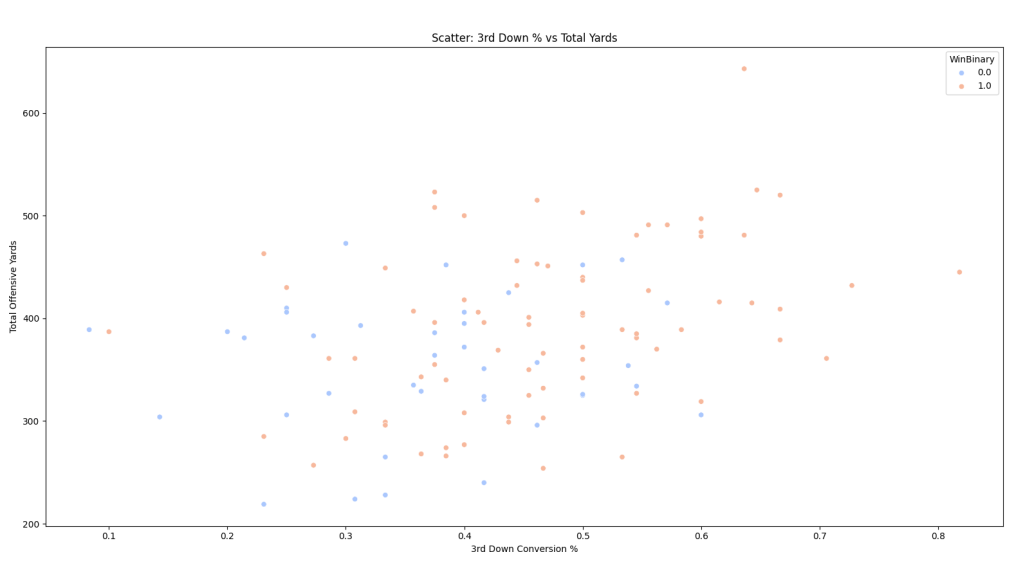
We’ll kick this off with a scatter plot, one of the more common graphs. This is more exploratory, gives us an overview of the data without having to stare at numbers.

This visual shows the relationship between our two predictors and how much they overlap. Orange dots are wins and blue dots are losses. The x-axis is 3rd down conv. and the y-axis is total yards.

We see the data points are scattered pretty widely. Generally we should be seeing the wins tend towards the upper-right corner and losses towards the bottom-left.

Common sense can tell us that a game with a low amount of total yards is more likely to be a loss. The league average total yards per game is usually a little above 300. The graph reflects that showing only handful of games won below 300.

Heatmap

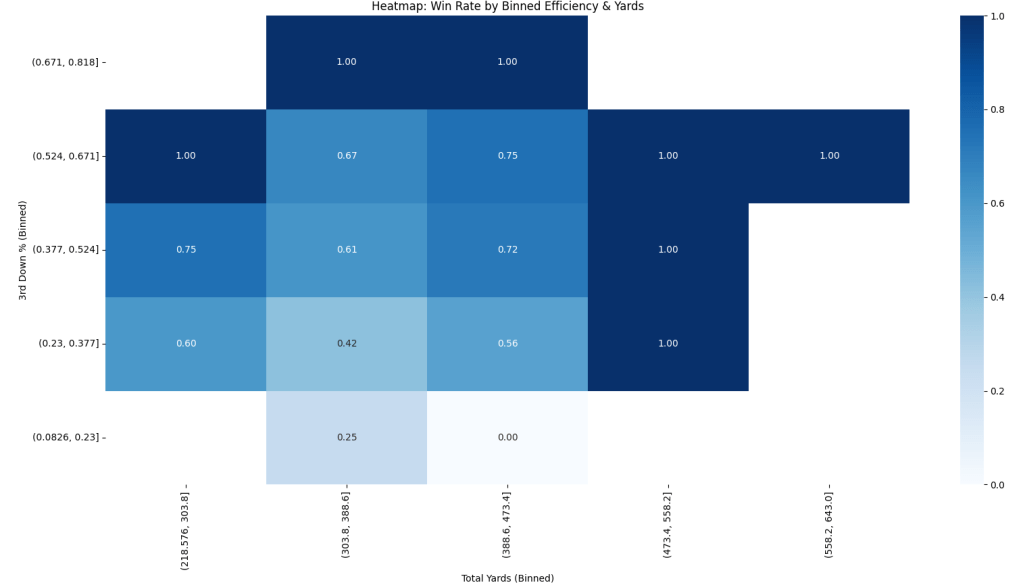
In this graph, total yards is our x-axis, and 3rd down conv. is our y-axis. Each grid in the heatmap shows the probability of a win relative to our two variables. The amount of blue is to proportional to said probability. Both axes are using bins, which are ranges of the values.

Again, using common sense, there’s a low chance of winning if the Ravens have low total yards and a low 3rd down conv. If we look at the variables pulling all of the weight, we see our first tastes of a 1.0 win probability at the 52% 3rd down conv and the 473 total yard bins. One big thing I need to emphasize is that a 1.0 win probability is not the same as a 100% guaranteed win. It simply means that all games with both of those metrics were wins. So in a way, it does give some predictive power, but it’s still not wise to use 1.0 as a 100% chance of winning.

Calibration Curve

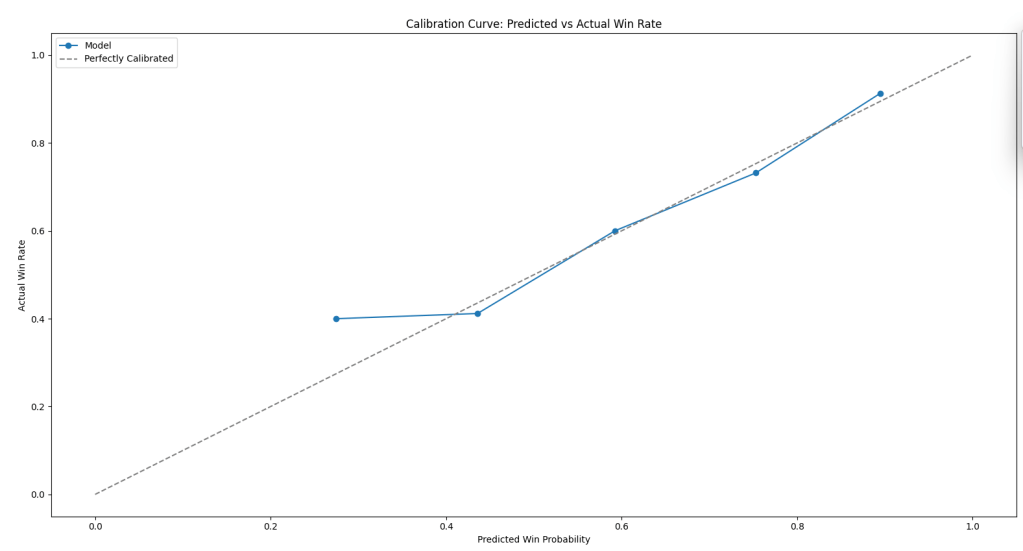
A calibration curve simply illustrates how correct our model was in predicting a win versus actual wins.

The straight dotted line is the ideal curve which means the model was 100% in predicting all wins. The blue line with hard points is the model’s predictions. We see the first point is at a 0.3 predicted win probability but the actual win rate was a 0.4. So this means the model started off pessimistic. In the middle to upper ranges it’s pretty accurate, yet it get a bit overconfident at the very top.

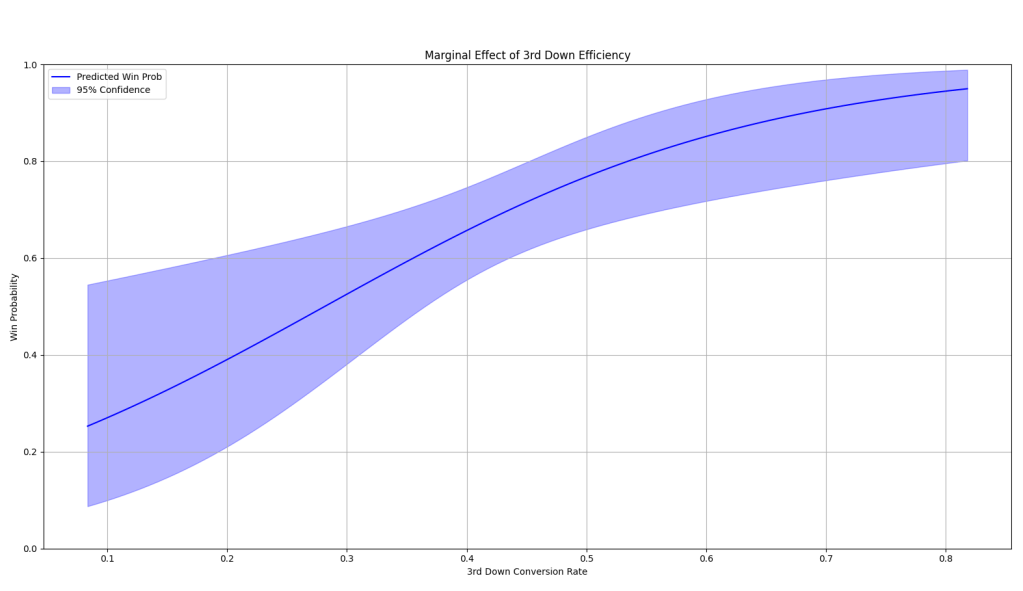
Marginal Effects

While every other graph observes both variables, marginal effect graphs allow us to see how much a single variable contributes to the predictive probability. This is done by holding the other variable at its constant average. So if we want to observe 3rd down efficiency’s impact, we’ll hold Total Yards at its average, then we do the same for observing Total Yards, holding 3rd down efficiency at its average.

The line is the predicted win probability. The shaded area is the 95% confidence interval which just shows how certain these predicted win probabilities are. Notice they’re most narrow towards the middle in both graphs since this is where most of the data lies. The more data available = the more confident the prediction.

Given the small sample size of 116 games across 7 seasons, this analysis can only be so precise. This is the nature of football, who doesn’t play that many games. Compare that to basketball where 116 games is about a season and a half or baseball where that doesn’t even crack a whole season.

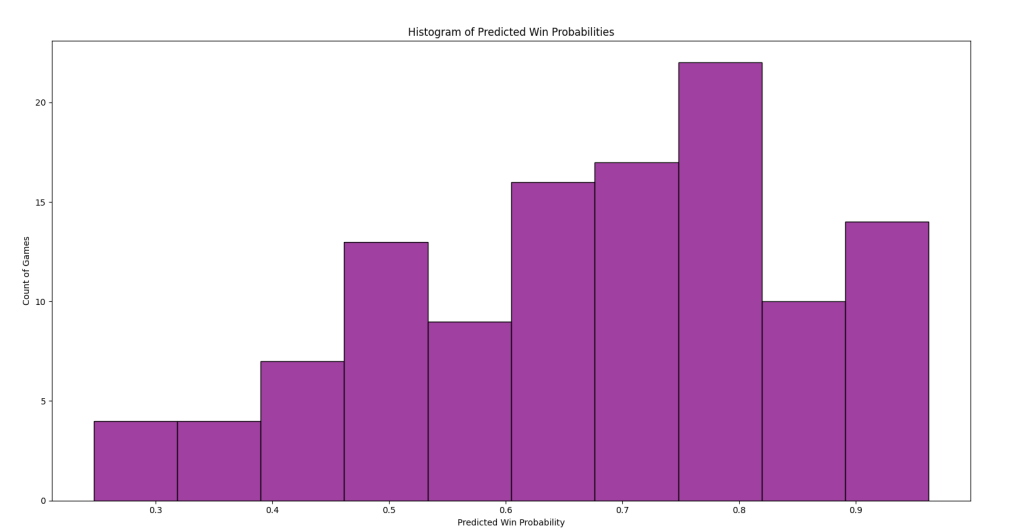
Histogram of Predicted Probabilities

This histogram shows the frequency of our model’s predicted win probabilities. It best illustrates the model’s confidence throughout our dataset. We see this graph tends towards higher probabilities, the highest being 0.8 for over 20 games. If 0.5 was the most frequent, that means the model has virtually no confidence; it’s shrugging its shoulders and giving a random guess.

The histogram is best compared with the calibration curve. The former measures the distribution of predictions while the latter measures the quality of the predictions

Confusion Matrix

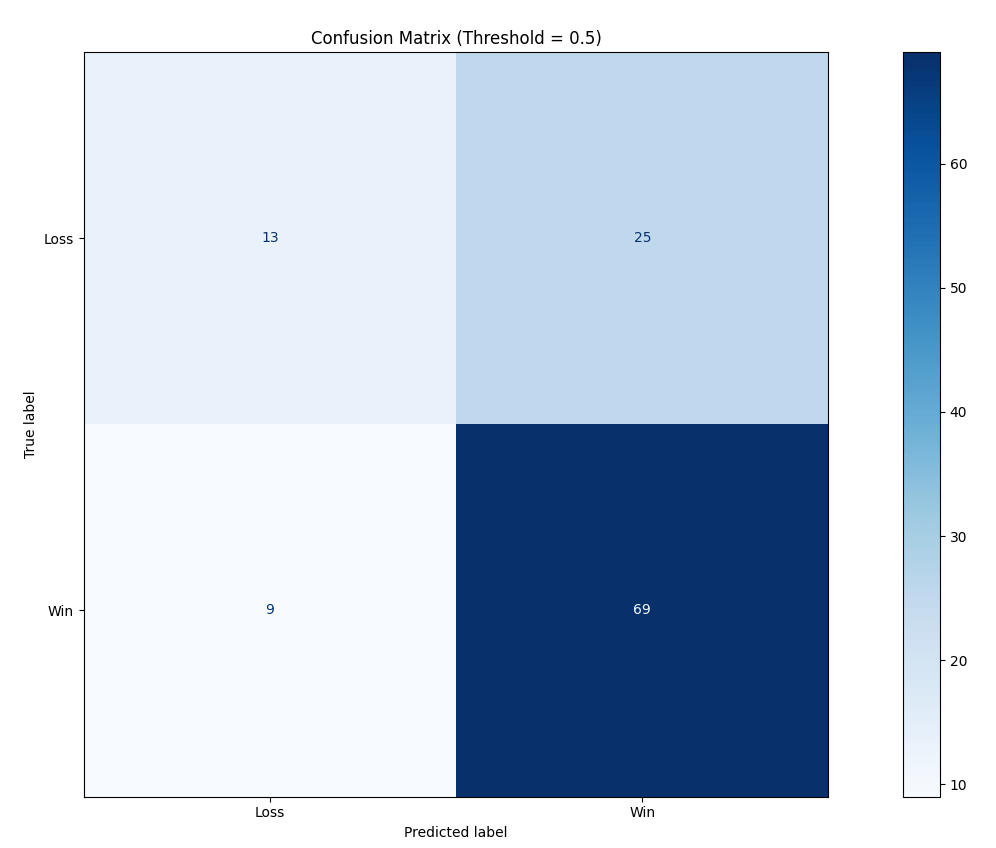
This confusion matrix is my personal favorite visualization out of the all the others. No percentages, no esoteric log-odds or advanced math needed to understand it. This is a simple 2×2 matrix that illustrates how many times the model was right and how often it was wrong.

The x-axis is the model’s win/loss predictions and the y-axis are the actual results. The bottom two squares are all the actual wins, and the top 2 are the losses.

The bottom-left-square means the model predicted a loss, but turned out to be a win, of which this happened 9 times. The bottom-right square shows that out of the 116 total games, the model correctly predicted a win 69 times, which is slightly above average accuracy.

So whether the model predicted a win or a loss, if the result matches the prediction, that’s a true prediction, meaning the model was correct. If it predicts win, and the result was a win, that’s a true positive. If it predicts a loss and the game was a loss, that’s a true negative, which healthily realistic. If it predicted a win but the result was a loss, that’s a false positive, which means the model was too optimistic. If it predicted a loss but turned out to be a win, that’s a false negative, meaning it was too doubtful.

This matrix is tuned for a 0.5 threshold, meaning any predicted probability at or above 0.5 is considered a win. We could of course tune this to be higher, say at 0.6 and any prediction lower is considered a loss.

Conclusion

Just using 3rd down conversion rates and total offensive yards, we were able to build a statistical model that predicts the probability of the Ravens winning a game. 3rd down conversion rate emerged as the stronger predictor. The model’s pseudo R2 of β‰ˆ0.12 shows the model is better than just guessing, but still far from perfect. Again, football games within seasons are relatively spaced out compared to baseball and basketball. So given the small sample size, the data can only be so precise, especially when only using two predictors. I just kept this simple for my first end-to-end statistical analysis project.

Python #15: Pacman

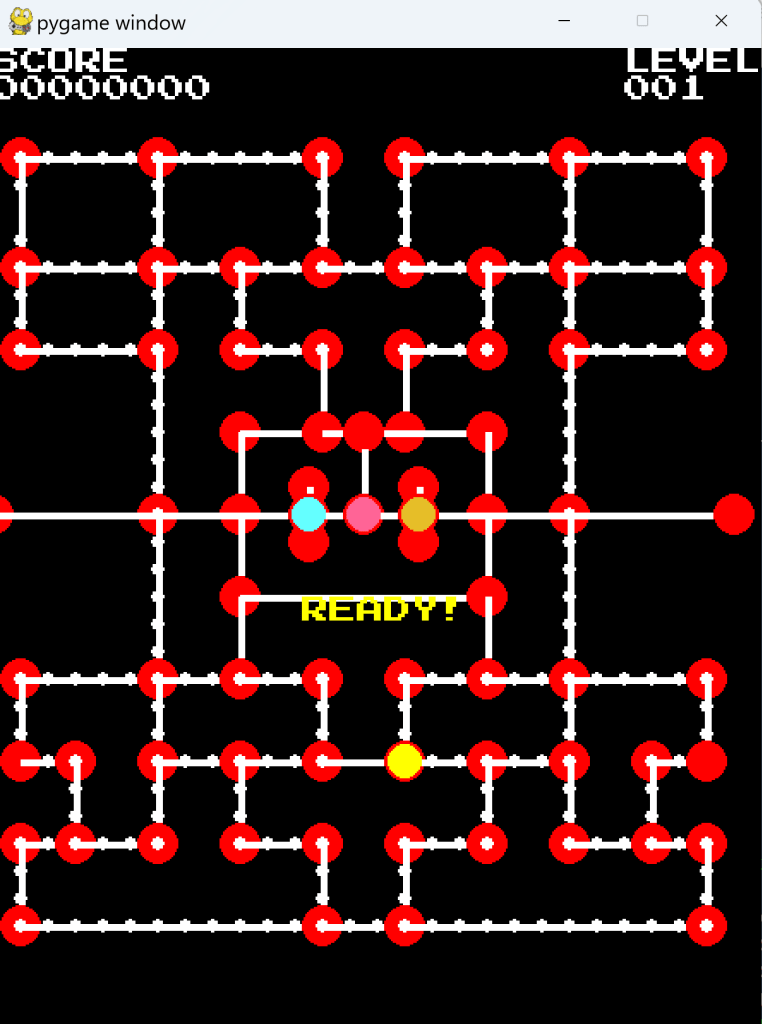
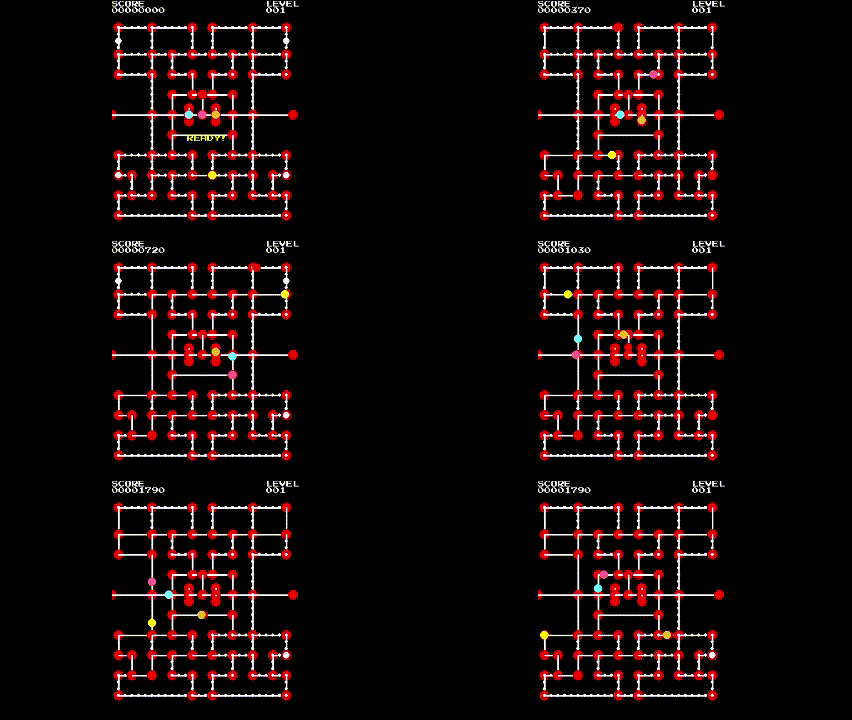
Final Product (My Version)

Files

Creator’s ZIP folder of all the completed files. The ‘run.py’ file is the home base where the game is played.

This is my (Grant’s) version of the same files, denoted by the ‘1’ in the names. Neither is perfect, we both have unique flaws. I recommend downloading both versions and experimenting with how the games run.

This is a ZIP folder of the codes for each milestone of the game’s creation. These are based on my version, not the creator’s. Make sure your indentations are uniform when pasting this into your IDE.

Troubleshoot tips: While the non-Python files are in the zip folder, make sure they’re also in the home base folder that the zip folder lies in. You’ll likely have to copy and paste them.

Intro & Overview

So I first did Pong as a way to practice Python outside of random exercises. I learned a little but it still left out a lot of features of the language. So to take it up a notch, I’m remaking Pacman entirely in Python. This involves every feature of the language from functions to loops, libraries, and dictionaries.

I found this amazing website pacmancode.com that walks through the process of coding the game in Python. I couldn’t find the creator’s name, but I commend him for making this. This is what educational content creation is all about: create what you wish had existed when you were starting out.

Ima be straight with yall, this isn’t perfect. It’s not fully functional arcade-ready. Even running the code the creator made still has some issues. The characters are misaligned, the button feedback is stiff, and a few other things. I just did this to get more practice in Python. I have more important things to do with it, so I wasn’t gonna spend all my time correcting each and every error. So again, this won’t be a polished version, but the base will be there. I may revise this later, but don’t take it too serious.

So first I’ll give yall an overview of the sections we’ll be going through. We’ll start with the game area, which is the maze. We’ll set up a bare-bones version of Pacman and his basic movement. Then we’ll move on to the nodes that will make up the maze. This is the most tedious part of the process. Luckily it’s in the early stages so we’re getting this out the way. Then we’ll set the features of the maze, like its borders, portals, and pellets. We’ll be connecting these features to Pacman during this part too. The hump of this project is the ghosts. We’ll spend a chunk of time on them. Creating them, setting their different chase styles, and setting the modes of the game which include Pacman eating a power pellet, followed by him eating a ghost, the short time when a ghost is eaten and rushes back to its home base, and dying from a ghost. After that, we’ll handle the auxiliary game mechanics like the character’s starting positions, the fruit, Pacman’s lives, pausing, and ending a level. One big thing I couldn’t figure out in time is reviving Pacman after he loses a life. I got his death animation down, but if he loses a life, an error pops up, and it’s too layered to focus on. So I’ll admit this is the main game-breaking flaw I had to leave in. If you’re testing this code and running the game as you follow along, don’t let him die. After that, it’s really all aesthetics from this point on. We’ll be using a pre-made sprite sheet that contains all the images from the original game. Remember some objects actually change shape instead of just moving, like Pacman’s death or the ghosts’ eyes. These are animations, which means you’ll need each frame of the object in a different state. The sprite sheet saves us time from having to create all of that from scratch.

Setup

All you need to set this up is a working computer. Download the Python language from the official site, it’s free. And you’ll only need to install 2 libraries: Pygame (obviously) and NumPy which we’ll be using to add the nodes into a data structure. To install these libraries, open your computer’s terminal, it may be called ‘command prompt’ or ‘PowerShell’, and type “pip install pygame numpy“. This will install both libraries for you. Again, this is all free and takes up little space. You’ll also need an editor to actually type the code into. I used the IDLE that comes with Python when you download it, so that’ll work for you too; just search for the ‘IDLE’ app on your computer. You don’t have to use this one, but any other one is gonna add complications if you’re not already used to it. This is the basic word doc for writing code in Python.

We’re also going to be using many separate files that’ll be imported into each other. So I suggest creating a folder to hold those files.

After going through this whole thing, I have a 3-step heuristic for how Python works: If you want to move an apple, you first have to state that there is an apple, then you have to state there are things you’d like to do with the apple, then you move the apple. Just about any error, outside of spelling or spacing, happens because one of these steps was missed. The ‘init’ method will usually hold the first step. The use of ‘self’ is for the sake of the second step in most cases, and the other methods is where the actual work is done.

Vectors

Starting off, as with any game, there’s the space of the play area. This space is a grid. To get from point A to point B, I would give you 2 sets of information: distance and direction. “Go up 3 blocks, turn right for 2 blocks, hang a left, then stay straight for 5 blocks.”

Create a file called ‘vectors’, and make sure it’s a Python file, which you can tell by it ending in ‘.py’. This first code imports a ‘math’ package to use predefined functions.

x and y represent the coordinates the vector is pointing towards. As with any initialize (init) function, we start the arguments with ‘self’ and establish them with themselves using a ‘self’ reference.

The arithmetic we’ll be doing is adding and subtracting vectors along with multiplying and dividing vectors by scalars; in that order.

For the first 2, addition and subtraction, ‘self’ is the current Vector2 instance, and ‘other’ will be whatever other number we put in the equation. The next one ‘neg’ makes the coordinates negative. The next 2 ‘mul’ and ‘div’ do their respective operations. They’re set to scalar which is standard arithmetic when dealing with vectors. The ‘div’ sets its scalars to be floating-point (allowing decimals) to ensure precision.

The regular ‘div’ is for Python 3 and the ‘truediv’ is for Python 2. Ensuring this can play on the current and previous versions.

This method checks for equality between 2 vectors. In scientific computing, 3 and 3.000001 are usually considered as different, but they can suffice as equal for this case Our ‘self.thresh’ variable is the threshold tolerance for the biggest difference the equality checker will allow. We subtract the 2 values to see if the difference is smaller than our threshold value. The ‘abs’ is what calculates the absolute value of the number it’s passed.

Here we have 2 magnitude methods. ‘magnitude’ returns the actual length of the vector which requires a square root (which is why we had to import the ‘math’ package). ‘magnitudeSquared’ is the method we’ll be calling throughout the game since it does the squaring for us.

This string method doesn’t have any functionality for the game. It’s used to print out the vector and make it more accessible. This is for organizational purposes.

This ‘copy’ method will copy a vector so we get a new instance of it. The other 2 methods convert our vector into a tuple and an int(eger) tuple which will make the code cleaner for later.

Blank Screen

We store all of our constants (values that don’t change) in one file we’ll call constants. Make sure it’s still a Python file too.

Our next lines serve as an entry point into our game. We create a run.py file that’ll be the main one we use to run the game. Every other file will be imported into this one.

Then we create a GameController class followed by a Pygame initialization, defining the screen using the values from the constants file, and calling a method that sets up the background (which we haven’t created yet). In run.py

Next we set the background color to black.

We’re gonna set the ‘start game’ and ‘update’ methods to be used later.

Then we set the ‘checkEvents’ method for quitting the game. Without this, the X wouldn’t do anything. Yes, you have to manually tell a program that you will want to close it at some point. The ‘render’ method is to initialize the drawings we’ll be doing. In run.py

This block will be at the very bottom of the run.py file. The ‘if’ checks if the script being run is the main program. The ‘game’ variable after that creates an instance of the GameController class. Again, if you want to work with something, you have to establish it, and then tell it you want to work with it. This takes care of the second part.

The ‘game.startGame()’ calls the ‘startGame’ method on the ‘game’ object; calling it to be used. Below that is an infinite loop for the ‘update’ method that continually advances the game through whatever state it needs to.

At this point, when you run the run.py file, a blank pygame screen should pop up.

Basic Movement

This part takes a bit of physics. The equation s(Ξ”t) = s0 + vΞ”t + Β½*aΞ”t2 represents one-dimensional motion. s0 is our current position, regardless if it’s x or y. V is our velocity which is speed and direction. s(Ξ”t) is our new position. Ξ”t is the time it’ll take to get to this new position. a is the acceleration of an object as it’s moving towards that new position. In this case, anything that’s moving in the game is either moving at full speed or not moving at all. Acceleration entails speeding up or slowing down, which isn’t a factor in this game. That said, we can set our acceleration to 0 since it’s not involved in the mechanics. We can now cut out everything after that second plus in the equation and simplify it to s(Ξ”t) = s0 + vΞ”t.

So to calculate our new position, all we need is our current position, the direction and speed we want to move in, and the time it will take to get there. That’s 3 simple variables. We’re gonna handle some timing issues later on.

Next we initialize a time clock at the end of the ‘init’ method of the GameController class. In run.py

Next we’re adding this ‘dt’ (delta time) variable as the first line of the ‘update’ method which returns the amount of time that has passed since the last time this line was called. 30 is the frame rate. We divide it by 1000 so the result is in seconds and not milliseconds. Overall, this is the game’s time tracker. When we want to manipulate how long certain things last, like the bonus fruit or the ghosts’ vulnerability, this variable helps the game recognize the passage of time so it knows how to mark when something should occur. This is placed in the ‘update’ method since the game will continually have to do this.

The 2 bottom ‘self’ statements were already there. We’re adding the ‘dt’ variable.
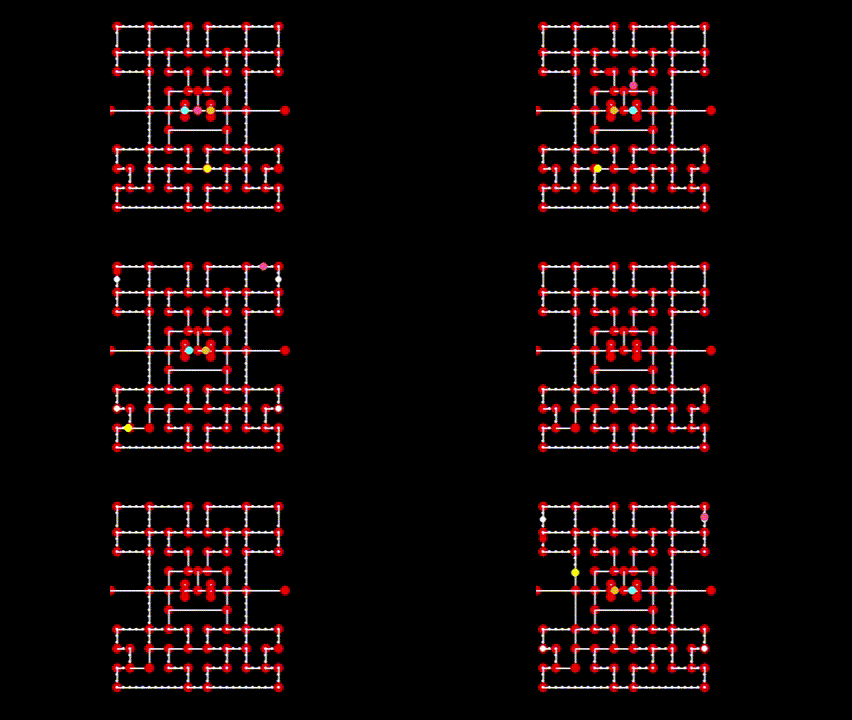
Next we’re defining our constants starting with Pacman’s color, he’s yellow, which is a mix of red and green. So we set those values to 255 and leave blue at 0.

With those in place, we can now draw the man himself. We’re creating a new file called pacman.py for this.

We import pygame of course. The ‘pygame.locals’ line is a module within Pygame that’ll recognize and operate certain keywords when we use them. The asterisk after that is to import all the properties of this module. Otherwise, when we use them, we’d have to put ‘pygame.locals’ before each one, which is tedious. This has to be manually done since Pygame is a big library with too many modules to import all at once. And of course, we import the Vector2 class from the ‘vector’ file and bring over all of the ‘constants’ file.

So we create the Pacman class. The ‘object’ argument tells the class to inherit from a base ‘object’ class. This was standard in Python 2, but automatically done in Python 3. So we could technically leave it out and have it still work.

As with any class, we start with an ‘init’ method to initialize everything. We add these instance variables that will hold the data for his characteristics. We first got his name and his initial position on the game board (which is 200, 400).

This ‘self.directions’ instance creates a dictionary that controls his movement in response to certain key presses. Pacman’s initial direction is STOP since we don’t want him moving unless we say so. In Pygame coordinates, a positive x-vector is right and a positive y-vector is down. So when we want him to move up, when we press the ‘up’ key, his y-vector is set to negative, and vice versa for the down key and moving down. The same applies to left and right.

Part 2

After that, we have a ‘self.direction’ variable that’s set to ‘STOP’. Since this is the ‘init’ method, that means initially, Pacman is stopped.

Speed and color speak for themselves. The radius means we’re making his circle 10 pixels.

In the ‘update’ method, the first line updates Pacman’s position based on his current speed and direction, while also accounting for the passage of time (dt). Again ‘self.position’ is his starting position (200, 400). The other side of the equation calculates his new position and compares it to the starting.

We then set a ‘direction’ variable to check for the key that was pressed. To which that is then set by ‘self.direction’. Essentially, ‘direction’ starts at STOP, which is nothing, yet as we go on (which is the function of the ‘update’ method), the variable updates to the respective direction of the key that was pressed.

We just called the ‘getValidKey’ object. Now we have to define its entailments to check for which key the player is pressing. Each key returns the direction it corresponds to. These are all ‘True/False’ Boolean values. Whichever one turns ‘True’ is the one that is returned. If none of the keys are pressed, and Pacman hits a wall, it defaults to ‘STOP’.

Now for the actual drawing. We initialize it with the ‘render’ method. The ‘self’ argument refers to Pacman himself and ‘screen’ is where we’re placing him. For the ‘p’ variable, we’re converting ‘self.position’ to integers, hence the ‘asInt’ method. We do this because coordinates are stated as floating-point numbers, meaning decimals. Converting these to integers helps us keep Pacman’s position precise. And lastly we use the ‘pygame.draw.circle’ method which, you guessed it, actually draws the circle. The ‘screen’ argument obviously puts it onto the screen. The other 3 are Pacman’s characteristics which pertain to his appearance: his color, the ‘p’ variable we just set for his position, and his radius which pertains to his size since he’s a circle.

Now that we’ve set the Pacman class, we can go back to our run.py file and implement him.

First we import him. The first ‘pacman’ is the file we just came from. The second ‘Pacman’ is the class that holds the man himself.

We add ‘self.pacman = Pacman()’ to the ‘startGame’ method. ‘self.pacman’ will allow us to call the Pacman class where we defined his characteristics. The ‘Pacman()’ set to it is the actual class.

In the ‘update’ method, right under the ‘dt’ variable, we make a call to Pacman’s ‘update’ method passing in that ‘dt’ as an argument, which is its resulting value. This connects the game’s time tracker to Pacman.

Lastly, we add 2 lines to our ‘render’ method. The ‘screen.blit’ line redraws the background. Otherwise any object that moves would appear to be smearing across the display. The objects need to be erased and redrawn in their new positions.

Movement Smear

And the last ‘render’ line is the final touch to put Pacman onto the screen.

At this point, we have a black screen with a yellow circle we can control with the keyboard.

Smooth Movement (this GIF may show it leaving little streaks, but it doesn’t do that in the actual window)

Nodes

Even though we’ve given Pacman the freedom to move, we gotta add constraints so he only moves within the maze.

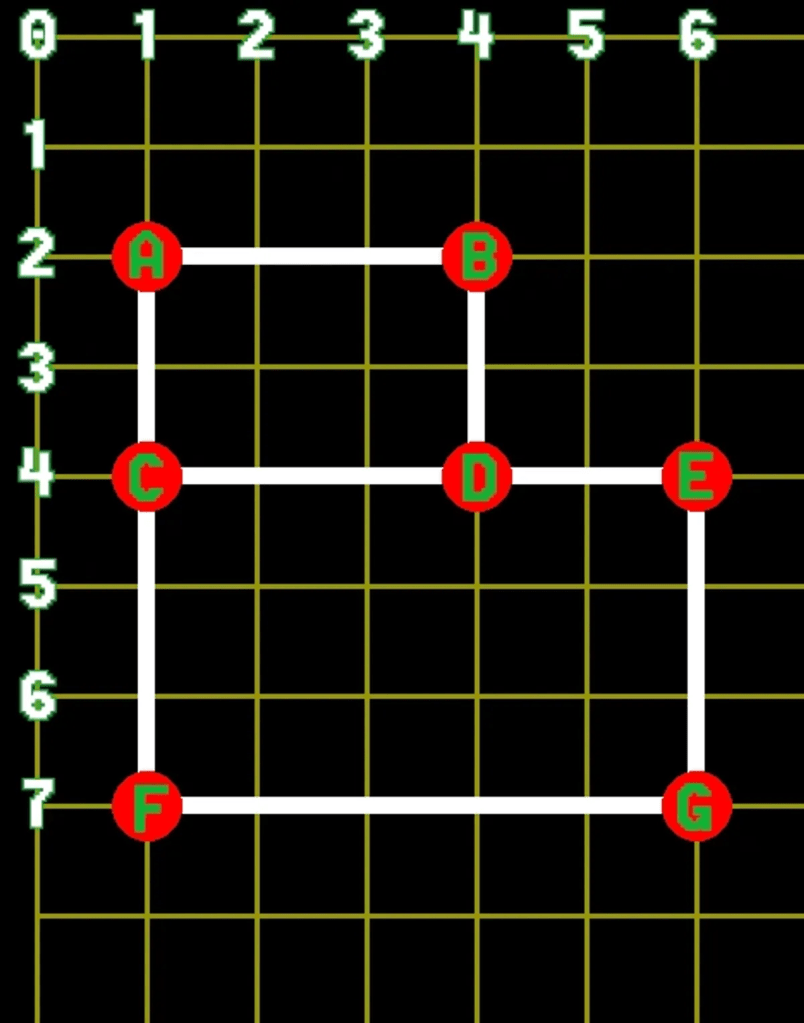
A node by itself is a piece of information. Its most important trait is its position. 2 nodes that are directly linked are considered neighbors. They’re connected by a path. A collection of connected nodes is a map. The maps in this game will only have up to 4 nodes since Pacman can only move in 4 directions. Also note that a node can only have one neighbor per direction.

These are a set of 7 nodes labeled A-G on a grid. We see that node A has 2 neighbors, B and C. Node D has 3 neighbors, B, C, and E. We identify their position by the numbers on the edge.

We’ll add white and red with their RGB values to our constants.py file which will represent the lines connecting the nodes.

We’re also creating a separate node file and adding a ‘node’ class. As always we first import pygame. Then import the ‘Vector2’ class and the ‘constants’ file.

As always, we start a new feature with an ‘init’ method to initialize it. It takes the arguments ‘self’ (which is a given), and x & y to specify the node’s position. The next ‘self.position’ does this again to solidify that the nodes will have a position. The next ‘self.neighbors’ line creates a dictionary with all directions. They’re all set to ‘None’ to state that no node has neighbors when it’s first.

The ‘render’ method is what’ll draw the nodes. It takes the arguments ‘self’ and ‘screen’; same function as it was used for making the Pacman character. The ‘for’ loop is set to iterate through all the keys of the ‘self.neighbors’ dictionary we just set; the 4 directions. The ‘.keys()’ is a method call to access the keys in a dictionary. Per the second line, each iteration checks if the neighbor in the current direction is not ‘None’. If it’s not, that means there’s a neighboring node in that direction. The [n] represents whichever key is the current iteration.

The ‘line_start & end’ variables mark the points of the current node for the start and the neighboring node in the current direction for the end. They’re both converted to tuples since Pygame expects coordinates in tuple form.

The 2 ‘draw’ functions at the end draw the white node circles and the red path lines.

Since we’re dealing with a lot of nodes, we’ll make another class called ‘NodeGroup’. All node objects will be kept in a list.

We create the class then create a method ‘setupTestNodes’ to demonstrate how we can manually link the nodes. Each node needs to have its location set upon creation. After that, we link them together adding nodes to the neighbors’ dictionary of each node. Finally, we add all of the nodes to the ‘nodeList’.

When we want to draw all of the nodes we call the ‘render’ method which just loops through the ‘nodeList’ and calls that node’s ‘render’ method.

Now that we have the NodeGroup class written we can create an instance of it in the GameController class back in the run.py file. First import the ‘NodeGroup’ class.

In the ‘startGame’ method we add 2 lines. The first is creating an instance of the ‘NodeGroup()’ class setting it to a variable named ‘self.nodes’. The second line uses that exact variable and calls the ‘setupTestNodes()’ method for it to perform.

The nodes line in the ‘render’ method is the final touch to put them on the screen. The same as we did with Pacman.

Added Nodes

At this point, we have a fixed map of nodes along with our mouthless Pacman. He does not yet have any connection to the nodes. They’re a part of the background at this point.

Node Movement I

We have to go through 3 types of node movement. The first is simply having Pacman jump from one to the other with no transition. If node A has node B as its left neighbor, and the player presses the left key, Pacman will jump from A to B.

We have to pass in the list of nodes that make up the maze. Pacman needs his starting node to be defined. So we’ll just set his position to the first node for now.

So in the pacman.py file, we add ‘node’ as a second argument of the ‘init’ class. We add 2 more ‘self’ lines after color. ‘self.node’ set to ‘node’ initializes Pacman’s position to the node. ‘setPosition()’ does the actual tying to it.

Delete the ‘self.position’ line from the ‘init’ and ‘update’ methods.

Then we add a separate ‘setPosition’ method just before the ‘update’ method, which copies the node’s position to Pacman’s. The ‘copy’ method is used to set an independent copy of the node’s position. Without this, modifying ‘setPosition’ would modify Pacman’s position.

We add 2 more lines to the ‘update’ method.

The other two new methods, ‘validDirection’ and ‘getNewTarget’, check whether the key we’re pressing is a valid direction and whether there is a node in that direction. If so, then we move Pacman to that node automatically.

Next in the run.py file, we modify the ‘startGame’ method so that we pass in the node we want Pacman to start on.

At this point, Pacman is now jumping from node to node only using the path to transition. He does not stay between nodes.

Connect to Nodes

Part 2

So far we got Pacman jumping from node to node, but we want to see him moving between the nodes. In this part, he’ll be stopping on each node, even if a key is pressed. While Pacman is between nodes, any other key presses won’t be responsive. We also have to add a STOP condition when he starts to overshoot a node.

We’re adding a new ‘overshotTarget’ method in the pacman.py file that checks if he overshot a node. The ‘if’ loop is the lines that does this with ‘selfTarget’. If it is None, that means there is no target position to compare it with, indicating no overshot, to which it defaults to return False. If ‘selfTarget’ is not None, that means Pacman has overshot his target node. When this happens, the 2 vectors variables are calculated. ‘vec1’ finds the difference from the target position to the current node. ‘vec2’ finds the difference from Pacman’s position (self.position) to the current node. The ‘magnitudeSquared’ method is used to avoid a square root since we’re just comparing 2 distances; it simplifies the numbers.

If Pacman’s distance is greater than or equal to the distance between the 2 nodes, then he has officially overshot the target node.

Next we’re adding another variable to the ‘init’ method. ‘Self.target’ which is set to ‘node’. The target node is usually the node Pacman needs to move towards, but if Pacman is stationary on a node then the target node is simply None since he has no target.

In the ‘update’ method, we delete everything below the ‘direction’ variable and replace it with:

At this point, Pacman now moves smoothly along the path between nodes. No more ‘jumping’

Smooth Node Transition

Part 3

Though we’ve seen Pacman move smoothly between nodes, he stops on each node. We also can’t change his direction when he’s traveling between nodes. In this section, we’ll change his movement so that he’ll only stop on a node if he can’t continue on to another node in the direction he is moving. Otherwise he’ll move past the node. We’ll also make it so he can reverse direction. By the end of this section, Pacman’s movement will be completed. It will function the same regardless of what maze you put him in.

We’re gonna create 2 new methods for the Pacman class. The first is ‘reverseDirection’. Whatever direction he’s already moving in, if I press a key of a different direction, it’ll multiply that value by -1, which makes it opposite. If LEFT is 2, pressing RIGHT makes that -2. The same goes for UP being 1 and pressing DOWN makes that -1. This is what the first ‘self.direction’ line does. The ‘temp’ variable temporarily stores ‘self.node’ so its value can be swapped with ‘self.target’s in the next line. Then in the line after that, ‘self.target’ takes the value of ‘temp’ which solidifies the swap.

But once we move Pacman in the opposite direction, we still have to swap the node and target, which leads to our second method.

‘oppositeDirection’ checks if the input direction is the opposite of Pacman’s current direction. The reason I want to check for this is because when Pacman is moving between nodes, the only direction he can move in is his current direction and his opposite direction. If he’s going left, he can either keep going that way, or go right. He shouldn’t be able to move up or down while he’s on that path. So I want to make sure that the input is a valid direction before saying he can move in that direction.

The ‘if’ loop states if the ‘direction’ argument is not ‘STOP’ it checks the condition that ‘direction’ is equal to the opposite of the current direction. So if the current direction (self.direction) is 2, and the ‘direction’ argument is -2, then they’re equal in that case thus it’ll return True.

Lastly for this section we’re modifying the ‘update’ method. If the input direction does not get us a new valid target, then we check the current direction Pacman is moving in.

Remove the 2 lines under the ‘else’ and replace it with a ‘self.target’ variable set to the ‘getNewTarget’ object and including the direction. The new ‘if’ statement ensures that Pacman will stop when he hits a wall. Since he continuously moves forward, his target node can only be the same as his current one if he can’t move any more forward; which means he hit a wall. The last ‘else’ statement operates his reverse direction.

At this point, Pacman can now reverse direction while he’s traveling between nodes.

Reverse Direction

Maze Basics

Life is short. We don’t have time to create the maze node by node. So we’re gonna generate it automatically. To do this, we’ll create a text file, use that file as an input for some method, and then have that method output the required ‘nodeList’. To keep the file simple, we’ll create a small system of symbols to illustrate nodes and empty spaces for the computer to read.

  • “X”: empty space
  • “+”: node
  • “.”: vertical/horizontal path (connectors)

We’re gonna use the map and add it into the text file. Again, make sure it’s a TEXT file (.txt) and not a Python one.

In the node.py file, we’re first gonna import NumPy.

Add ‘level’ as an argument to the ‘init’ method of ‘NodeGroup’. We’re also gonna delete the ‘setupTestNode’ method. Now on to the additions to the ‘init’ method.

Delete ‘setupTestNodes’ and the ‘self.nodeList’ from ‘init’.

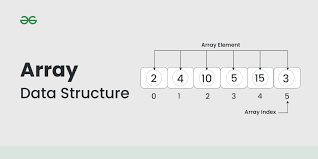
Since we imported Numpy, this will read out the text file and put it into an array, which we then transpose. We want the text file to be read in when we create an object from this class.

We take the ‘level’ argument and assign it to ‘self.level’ to create its own instance. ‘self.nodeLUT’ creates an empty dictionary for the lookup table. The 2 ‘symbol’ lines set the symbols, as you’d expect. We’re also storing our symbols in a list since we’ll need other symbols for other nodes and paths. The ‘data’ variable is set to read the maze file, as the method is named. It also calls ‘level’ as an argument or else it wouldn’t connect. The last 3 lines with the ‘data’ argument (that we literally just made) are the remaining steps for generating the maze.
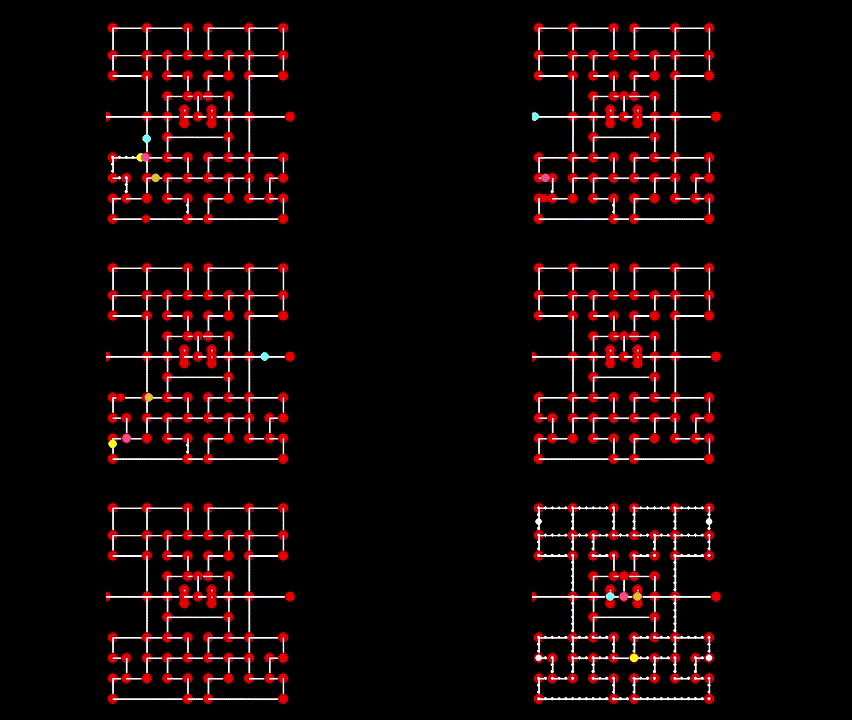
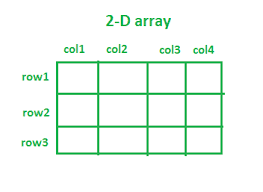
This next method is the text file using NumPy’s ‘loadtxt’ function, hence the ‘np’. The dtype needs to be set to ‘<U1’ or else it will try to read in the data as floats and create an error when it encounters non-float characters like the ‘.’ character. This will return a 2D NumPy array.

Now we’re creating the node table as a NumPy 2D array data structure. We’ll go through it row by row, and whenever we find a ‘+’, we’ll create an entry in the lookup table with the row and column the node was found in and create a Node object. The ‘data’ argument represents the array. It’s not built-in but ‘data’ is the common name we give to structures like that. The ‘offsets’ are meant to adjust the position of the coordinates by spacing them from the margin, but since they’re set to 0, they’re moot.

We start with a ‘for’ loop that iterates over the rows in the maze array. The ‘.shape’ method after ‘data’ is a NumPy attribute that collects the dimensions of an array. The [0] after that targets the rows of the array. [1] would be the columns. The ‘data.shape’ is within a ‘range’ function which will tell us how many rows there are. The ‘list’ function converts the range to a list.

We make these 2 loops for the rows and columns. The ‘if’ statement after that checks that the values of the (row, col) position are present in the ‘self.nodeSymbols’ list; it’s looking for a node. If the values are there, it calls the ‘constructKey’ method that converts a row and column in a text file to actual pixel values on the screen by multiplying them by whatever values we set for the tile sizes.

So the dictionary keys will be a (x,y) tuple, then the values will be a Node object. We’ll pass in the (x,y) location to that Node object as well. The dictionary makes it easier to lookup a node with its (x, y) position. If we only had a list of the node objects, we’d have to loop through them just to find a specific node.

Connecting Nodes Horizontally & Vertically

At this point we have a dictionary of Node objects, but none of the nodes are connected together. We’re gonna follow a 2-step process to connect them. Horizontally, then vertically.

When making the method, we use the same arguments we used in ‘createNodeTable’. Remember ‘data’ is the array of the maze symbols. The 2 ‘for’ loops do the same thing as they did in the last one: iterate through each row and column.

The ‘if’ statement checks if the current iterated position is in the ‘self.nodeSymbols’ set.

We scan each row for a ‘+’. When we find one, we check if the ‘key’ value is ‘None’ or not. We initially set it to ‘None’ when we start on a new row. The key can also contain a key to our dictionary. We call it ‘key’ so we know if 2 nodes need to be connected horizontally or not.

Again, when we come across a key, we look at the value of the key variable. If its value is ‘None’, we set it to the key of that node in the dictionary. This way we can see if it connects to another node down the line.
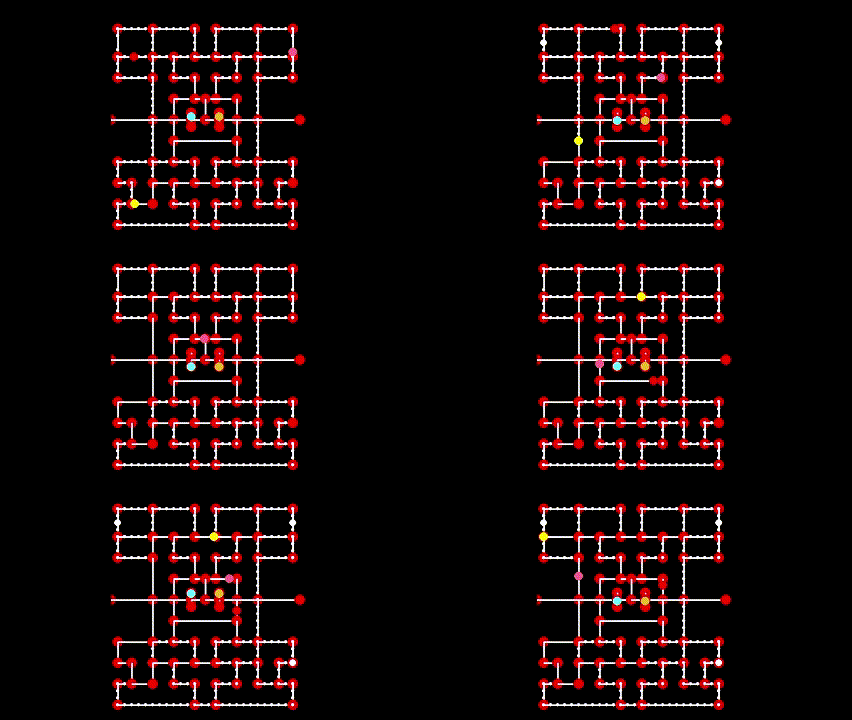
If we encounter a ‘+’ that is not None, but an actual value, then we connect those 2 nodes. Since we’re moving left to right, the new node we encountered is to the right of the previous node we encountered. And the previous node is to the left of the new node. Anytime we encounter any characters that are not in the ‘pathSymbols‘ list (which only contains ‘.’ for now), then set the key to ‘None‘ again.
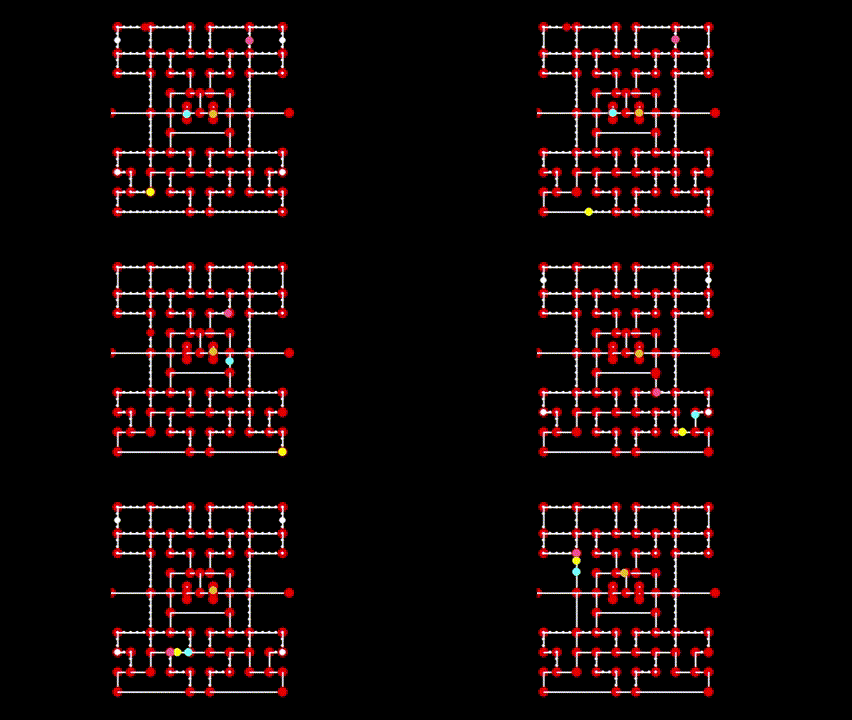
To connect them vertically, we’re gonna transpose the array. Which means the columns become rows and the rows become columns. This way we can apply the same logic we just did to connecting the nodes vertically. The main difference here is when we connect the nodes we need to reference UP and DOWN instead of LEFT and RIGHT. If we have an array that has shape (m, n), then the shape of the transposed array is (n, m). Other than that, the code is pretty much the same.

The ‘dataT’ is the variable we’re setting for the transposed version of the array. After that, the process is the same as horizontal. Just apply ‘dataT’ where ‘data’ would be.

We’re also adding 2 methods that allow us to access a node through its pixel location (x, y) or its tile location (row, column).

Next we’ll add a temporary ‘start node’ method. For now it’ll be the first node in the lookup table. We’ll change it later.

Next we have to change how to reference the nodes for drawing to the screen since we’re using the nodesLUT instead of the nodesList to keep track of our nodes.

Delete the ‘self.nodeList’ method and replace it with the LUT

Lastly we have to modify the ‘startGame’ method in the GameController class by passing in the name of the text file when we create the NodeGroup object. This is done in the run.py file.

Add “mazetest.txt” as an argument to the first ‘self.nodes’ line. Delete the second ‘self.nodes’. In ‘self.pacman’, delete the ‘nodeList[0]’ method, and replace that with ‘getStartTempNode()’

Then for the Pacman object we’ll call the method we just created that will return the node Pacman should start on.

Maze 1

We’re gonna scrap that test maze and add in a real one that we can play on. It won’t have graphics but the layout will be there. Name it ‘maze1.txt

Go back to the ‘GameController’ class in the run.py file and change the maze file name in ‘self.nodes’.

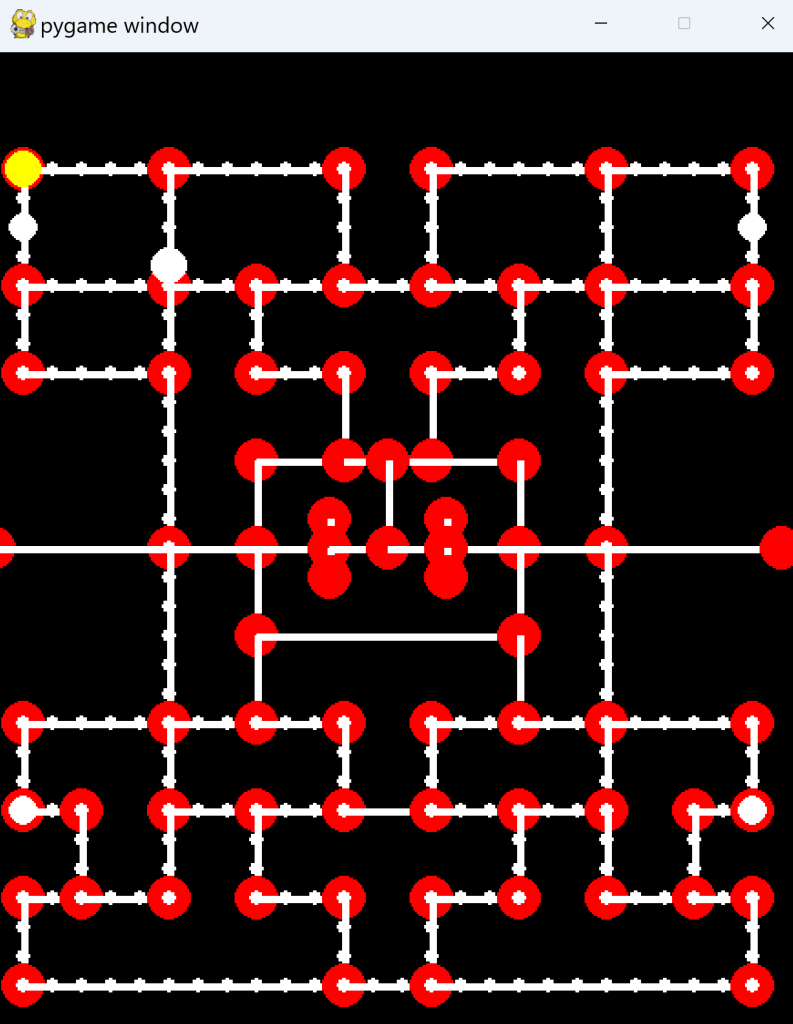
At this point, Pacman has a full maze he can move through. The portals don’t yet go anywhere, so he just stops.

Full Maze

Portals

A signature feature of Pacman is the portals that take you from one side of the maze to the other.

To make this, we’re gonna add a new neighbor type next to our regular directional ones. This neighbor will let us jump (or portal) to it. Add ‘PORTAL’ after ‘RIGHT’ and set it to ‘None’ like the others.

We’ll also add PORTAL to the ‘constants.py‘ file. Its value is irrelevant, so we’ll just put 3.

Obviously, the portals have to be in pairs. Otherwise where would Pacman go? So we’re gonna create a new method in the ‘NodeGroup’ class that takes 2 tuple values that’ll check if they’re in the nodes’ LUT or not.

The 2 ‘key’ variables create a key for their respective pairs. The asterisk (*) in front of the ‘pair’ argument unpacks all the elements of ‘pair’s arguments, which is x and y. The ‘if’ statement after the keys checks if they’re present in the LUT. If they’re not, we move on. If they are, we connect them with the PORTAL key which is what the last 2 lines take care of.

In the GameController class in run.py we have to call this new method after creating the node object. 2 tuples of 2 nodes to be connected are passed in. There’s no particular reason we chose these values, we just need something in there for now.

Now we have to tell Pacman to jump from one node to another when going through a portal. When Pacman overshoots a node we set that node as his current node and then find the next target node. Before we try to find the next target node, we check to see if this new node is a portal node or not. If not, then we move on like normal. If it is, then we set that node’s portal node as the new node instead. In the ‘update’ method of pacman.py

Pacman can now go through a portal and come out the other with no issue

Portals

Pellets

In the original Pacman, there were 240 regular pellets plus 4 power pellets in each level. Regular is worth 10 points and power is worth 50, giving you 2600 points minimum for eating all the pellets in the level.

We’ll be following this based on our maze symbols:

  • Anywhere there’s a ‘.’ or a ‘+’, place a pellet.
  • Anywhere there’s a ‘p’, place a power pellet
  • Anywhere there’s a ‘P’, place a power pellet

‘p’ is for a path and ‘P’ is for a node. We’ll also need symbols for areas with no pellets

  1. Anywhere there’s a ‘+’, ‘P’, ‘n’, place a node
  2. Anywhere there’s a ‘.’, ‘-‘, ‘|’, ‘p’, place a path

We’ll modify our maze.txt file and place pellets into it:

Now we’re gonna create a class to deal with these pellets in a new file: pellets.py.

First, we’ll add these 2 constants in our constants.py file

Then add this to the new pellets.py file.

‘Self.position’ calculates a pellet’s position with the Vector2 object by multiplying its ‘row’ and ‘column’ parameters by their opposite tiles. A pellet is just a white circle that has a radius of 4 pixels. The ‘radius’ and the ‘collideRadius’ variables are multiplied by 4 then divided by 16 for the purpose of scaling the game based on the size of the display it’s being played on. It ensures that pellets are always a 16th of the tile. We also specify how many points a pellet is worth: 10 points. The ‘visible’ variable just allows us to hide a pellet if we want.

The ‘p’ variable in the ‘render’ method turns the pellet’s position to an integer.

The PowerPellet class defines the larger pellet that gives Pacman the special power to eat the ghosts. For now, the only difference is that it’s larger, it’s worth more points than the regular pellet, and it has a timer

The ‘flashTime’ variable makes the power pellet continually appear and disappear (hence ‘flash’) for a .2-second period. In the ‘update’ method, we first set the timer to ‘dt’ to keep track of the game time along with the power pellet’s flash time. The rest of the lines basically model the cycle of the flash.

There’s gonna be a lot of pellets on the screen, so we should keep them organized. We won’t have to call our ‘Pellet’ and ‘PowerPellet’ classes directly, they’ll be called through this class; similar to the NodeGroup that groups all the pellets into one list.

To create a pellet, we’ll read the file line by line and create a pellet at that position based on the symbol we defined earlier. Then when we want to draw them, we just call this ‘render’ method and it will take care of drawing the pellets for us.

The ‘pelletList’ just stores all of the pellets including the power pellets, and the ‘powerpellets’ list just stores the Power Pellets. The powers have their own list so we can directly access them when creating the function to make them flash.

We’re also adding an ‘isEmpty’ method that checks for when the pelletList is empty, meaning the level has been cleared. pellets.py

Next we’re gonna add some node and path symbols to reflect our new maze.txt file. We’re adding ‘P’ and ‘n’ to the node, and ‘-‘, ‘/’, and ‘p’ to the path. nodes.py

Now for some GameController changes. In the run.py file, we’ll import the PelletGroup class we just made.

In the ‘startGame’ method we’ll create a PelletGroup object and pass in the maze1.txt file so that it will know where to create the pellets.

In the ‘render’ method we’ll draw the pellets. Draw them before drawing Pacman so that the pellets appear below Pacman.

Eating Pellets

Now that we’ve got the pellets to show, we gotta make Pacman eat them. ‘Eating’ in the technical sense means he’s colliding with the pellets. To manage this, we’ll be using a circle-to-circle collision check. Let’s say we have circles A and B. They both have their own radius, RA and RB. We also have another variable, D, the actual distance between the circles. If D is greater than the sum of the radii, then the circles can’t be colliding. If D is less than or equal to the sum, then they are colliding.

In the ‘init’ method of pacman.py, we’re going to add a variable to define Pacman’s collision radius. We could set this radius to be the same as Pacman’s but we’re gonna shrink it a bit so it looks like the pellets are being ingested and not just disappearing as soon as he touches it.

We’re also gonna create a new method that takes the pellet list and loops through each pellet until we find one that Pacman is colliding with. If we find the pellet he’s colliding with, we return it. If not, we return None.

Notice that we are comparing the square of the distances rather than the actual distances. This is to avoid taking the square root which is an expensive operation. Comparing the square of the distances is just as valid and faster.

Next we’re creating a method that handles all of the pellet events. We’re sending the ‘pelletList’ to Pacman and returns the pellet (if any) that he’s colliding with. If the pellet variable is anything other than None, then we just remove that pellet from the list. This goes in the GameController class of run.py

We then call it in the ‘update’ method to bring it to life

At this point, the pellets are in the maze and Pacman eats them. Nothing happens when a power pellet is eaten besides it disappearing.

Eating Pellets

Ghosts Intro

As we know, there are 4 unique ghosts in Pacman. Let’s look at their movement first.

They move node to node the same way Pacman does. We have to establish some principles for their movement.

  • When traveling from one node to another, they can’t reverse direction (except in a few special cases)
  • When a ghost gets to a node, it can move in any direction except the one it just came from. If it moved left to get to a node, it can’t then go right
  • A ghost can only backtrack if it reaches a dead end.
  • Ghosts move entirely on their own. The player has 0 control.
  • The ghosts choose a direction when entering a node based on which direction will get them closer to the goal they are trying to reach.

We’re gonna create a new entity.py file. Since Pacman and the ghosts move similarly, we can use this generic class to set those terms along with some more specific ones. Any object that inherits from this class will be able to move around on its own. Note the ‘visible’ variable that allows any object to be made invisible.

Most of the ‘init’ method speaks for itself. The ‘setSpeed’ method may look weird and you may be asking why are we setting the speed based on the TILEWIDTH? Well, if you have a set speed like 100, that works well for a map that has 16×16 tiles. If you make the maze bigger with 32×32 tiles, for example, then Pacman will actually appear to move slower. He’s still moving at the same speed, but he has more ground to cover on a larger maze. If you make the maze with 8×8 tiles, then he’ll appear to move twice as fast. So we need to adjust his speed depending on the size of the maze so we can get a similar experience no matter how large the maze is.

The ‘setPosition’ just matches the entity’s position to the current node’s. Just how we defined those principles for the ghosts’ movement, ‘validDirection’ checks if the direction is valid for an entity to move in; returning ‘True’ if it is and leads to a neighboring node, otherwise returning ‘False’. This leads to the ‘getNewTarget’ method since the entity needs a new target node once it’s given a new direction. ‘overshotTarget’ checks for what it is. It only has those extra lines since it’s calculating the squared distance. For the ‘reverse’ and ‘oppositeDirection’ methods, the former actually changes the entity’s movement, the latter is more for A.I. purposes where it’s just checking the opposite direction in case it may be better for its goal. We just went over ‘setSpeed’. And ‘render’, as always, does the drawing.

After that we’re gonna add an ‘update’ method to this class. It’s mostly similar to Pacman’s, except that we’re not choosing the ghosts’ direction. Instead, we’ll make them choose a random next direction when they get to a node.

Like any ‘update’ method, this updates the object’s state as time goes on; hence the ‘dt’ argument to represent time. The ‘self.position’ below that makes the entity move at a constant speed over time. The big ‘if’ statement checks if the entity overshot its target. If it did, per the next 3 lines, its current node is set to be the target, it retrieves the list of valid directions, then it calls to select a random direction.

The ‘if not’ statement deals with portals. Checking if they’re enabled and if the current node has a neighbor connected through a portal. If both conditions are met, the entity’s current node is updated to the neighboring node connected through the portal.

‘getNewTarget’ does what it says. The last ‘if’ statement updates the entity’s direction once the new target is chosen. Assuming the target is different from the current node. Otherwise, if the target is the same as the current, ‘self.direction’ is restricted from changing. Then finally, the entity’s position is updated to the new current node.

The ‘validDirections’ method is different from ‘validDirection’ in pacman.py. The former contains a list of valid directions the entity can move in. We use the ‘directions’ variable to initialize an empty list. We’ll loop through all 4 directions and see if the node connects to another node in that direction. If it does, then we make sure it’s not the node we’re coming from. If the list is still empty after those loops, then we stick with the direction from which we came. We add that as the only valid direction.

The second method just chooses one of the directions randomly using the ‘randint’ method we imported.

Now we gotta add Pacman in as an entity too. This is done in pacman.py

We first import ‘entity’. We change the Pacman class’s inheritance to ‘Entity’. Since we added those generic characteristics in the entity.py file, we can delete them from Pacman so he only has those specific to him. So we’ll delete the methods ‘setPosition’, ‘overshotTarget’, ‘valid/reverse/oppositeDirection’, and the ‘render’ method. Again, these are already in entity.py so it’s redundant to have them in pacman.py too. Also add an ‘Entity.__init__’ line right under Pacman’s ‘init’ method.

Nothing should be different about the game at this point. If it is, you did something wrong

Ghost Setup

Now we’re gonna create a new file ghosts.py. And we’re gonna add a ‘ghosts’ constant with a value of 3.

Create a ‘Ghost’ class with an inheritance from ‘Entity’. Start the ‘init’ method with an ‘entity init’, setting ‘self’ and ‘node’ as both of their arguments. Write the name and set the points to 200.

We’ll also make our additions in the run.py file. We do the import, and add to the ‘startGame’, ‘update’, and ‘render’ methods.

At this point, there is one ghost moving randomly around the maze. Nothing happens if Pacman collides with it

First Ghost

Ghost AI Start

At this point the ghosts are moving randomly around the maze. To make the game a challenge we can give them some intelligence, or at least the appearance of such. We can do this by simply giving them a goal to reach (a vector), and they never have to reach it.

We add a goal vector in the entity.py and the ghosts.py files. Entity’s is set to ‘None’ since that would give all entities the same goal. We just want to work with the ghosts, so we set that in the ghost’s file to specify it.

This next method will take a list of directions, we’ll assume they are already valid directions, and for each of the directions in the list it will calculate the distance from the entity to the goal. It then returns the direction with the smallest distance; specifically the line of sight distance.

What you should see after you implement these changes is that the ghost will be moving around in a circle in the upper left corner. This is because the ghost is basically trying to reach the screen’s origin which is the upper left corner of the screen, but can’t because of the movement restrictions we’ve placed on it. Remember that it can’t ever STOP during the game, so it has to choose a target every time it reaches a node, even if that target takes it further from the goal. But if it is able to choose a target that takes it closer to the goal, it will. In entity.py

So for an entity that needs to reach its goal, it’ll call this ‘self.directionMethod’ instead of the ‘randomDirection’ method. It’ll be a variable that replaces it. Also, delete the ‘direction’ variable and replace ‘randomDirection’ with ‘directionMethod’

After establishing that, we just tell the ghost to use the new method instead of ‘randomDirections’ in ghosts.py

The ghost should circle the top left corner at this point.

Ghost Circling

Modes Overview

Technically, all the phases of the game are based around the ghosts’ behavior. For that, there are 4 modes:

  1. Chase – the default phase, a ghost is tracking down Pacman; his position is their goal. Different methods for all ghosts
  2. Freight – when Pacman eats a power pellet, the ghosts are vulnerable and move randomly and slowly. This lasts longer in earlier levels and shorter in the later ones.
  3. Scatter -a ghost scatters to the corner of the maze. Each ghost has his own corner
  4. Spawn – when Pacman eats the ghosts. Their goal is to get to their spawn location to respawn. They move very fast in this mode.

We can think of chase and scatter to be the main modes and the others to be transitional. All the ghosts should be synchronized to scatter and chase at the same time. There should be an object to continuously flip these back & forth independent of what the ghosts are doing. The ghosts can individually go into one of the interrupt modes, but once those are finished they can easily find out if they should be in SCATTER or CHASE by asking the main mode object. 

We’ll add each of the 4 modes to the constants.py file, numbered 0 to 3 for their values.

We’re creating another file called mode.py. Scatter mode has a timer set to it so that when it runs out, it switches to chase mode for however long we set it.

In this file we’re going to create a class that controls the modes so that we can always know which mode the ghost has to be in. Right now it’s only passing along the main mode (scatter or chase).

We’ll also pass in the entity this mode controller is controlling in case it needs to send any messages back to the entity.

Now we gotta make the ghosts aware of this mode class. As far as they’re concerned, the only difference between the modes is what their goal (target node) is. As of now, the one ghost’s only goal is scatter, which is defined to the upper-left corner. And since the goal in chase mode is Pacman’s position, we’ll have to make the ghost aware of that.

We first add the import in the ghosts.py file. Then update the ‘init’ method in the Ghost class. Along with the node the ghost should start on, we’ll pass in the Pacman and mode objects. We’ll also create scatter and chase methods so we can replace our goal with the output of the scatter method.

We see the scatter and chase methods simply define the ghosts’ goal. Scatter’s is the top-left corner and chase’s is Pacman’s position. In this update method, we’re asking it which mode it’s in. Then we call the parent’s update method at the end.

Then in the run.py file, we pass in the Pacman object to the ghost so he can keep track of where Pacman is.

At this point the ghost should start moving in the top-left corner as before, then eventually start chasing Pacman. Still nothing happens when they collide

Circle then Chase

Ghost Home

You know what this is. This is where the ghosts start and respawn. Pacman isn’t ever allowed to go in here. Once the game starts, the ghosts don’t come back here unless they’re eaten.

To make the nodes for this, we’re gonna create a new method ‘createHomeNodes’ which will need an x-offset and y-offset. We add this into nodes.py

Since the home is so small, we can put the symbols directly in the code instead of a text file.

The nodes of this box have to be other nodes, otherwise the ghosts can’t enter or exit. Pacman should never enter, but the ghosts will need to in spawn mode.

This method connects the topmost node to whatever other node we want. We also need to specify a direction. For example, let’s say there’s a node to the right of the home node that we want to connect to. I need to specify the key to that node and also the RIGHT direction. This will connect the two nodes together in both directions. So the home node will connect to the other node on the LEFT. This will overwrite what was previously in the other nodes’ LEFT value.

In the ‘startGame’ method of the run.py file we’ll add 3 lines to code the home box into actual nodes. We call the ‘connectHomeNodes’ method twice so the home is connected to a node to its left and right.

At this point, the home box is now an open space that Pacman and the ghosts are able to come and go into. We’ll add the restrictions later

Home Box

Freight Mode

This is the iconic mode that makes the game what it is. Pacman has to be able to eat the ghosts, and the ghosts have to be able to respawn.

The ghosts are currently either in chase or scatter mode. Freight mode can only happen 4 times in a level since there are only 4 power pellets. It only lasts for about 7 seconds, decreasing the time with each level. The ghosts also move 50% their speed in freight mode.

This section will only send the ghosts in freight mode. We’ll need another section to break down eating them.

We’re gonna modify the ‘checkPelletEvents’ method in run.py to ask if it was a power pellet that was eaten.

Now we’re gonna set the method for freight mode in the ‘ModeController’ class in modes.py.

Then we modify the update method to keep track of how long we’re in freight mode.

We add these 2 methods to ghosts.py. As you can see they mainly control the speed of the ghosts when they’re in freight mode.

At this point, the ghost will slow to half its speed for 7 seconds when Pacman eats a power pellet. Nothing happens if they collide

Freight Mode

Spawn Mode

After Pacman eats a ghost, it’ll have to travel its speed multiplied back to the spawn point. So we’ll set a spawn goal in the middle of that box.

We add this to the ‘startGame’ method in run.py.

‘setSpawnMode’ defines the node we want to use. ‘spawn’ sets the location.

We add these next 3 methods in ghosts.py. The ‘startSpawn’ method is similar to ‘startFreight’ in that it checks to make sure we can start the SPAWN mode, and if so we increase the ghost’s speed, set the goal for the spawn location, and set the ‘directionMethod’ since before, the ghost was in FREIGHT mode and moving around randomly.

We’ll create a new method here that will set the current mode to SPAWN only if the ghost is in FREIGHT mode.

In the ‘update’ method in modes.py file, we’ll need to check to see when the ghost reaches the home so we can change his mode back. Remove the ‘else’ and replace it with the ‘elif’ statement as shown.

Now for the ultimate point function, checking if Pacman has collided with a ghost. In pacman.py, we’re gonna create a method similar to the pellet collision one. Delete the 4 lines between the ‘for’ and ‘return’ statements in the ‘eatPellets’ method.

Next we create a method in run.py that checks certain ghost events. Here we’ll see if Pacman has collided with the ghost, and if so we’ll check to see if the ghost is in FREIGHT mode. If he is, then we start his spawn mode. If he’s not, then Pacman dies.

When running, eat a power pellet then collide with the ghost and you’ll see that he’ll quickly rush off to the middle of the screen. When he gets there he will go back to normal.

At this point, when Pacman eats a ghost, the ghost will scatter to the home box and default to chase mode

Ghost Scatter

The Ghosts

The 4 ghosts are Blinky, Pinky, Inky, and Clyde. Their colors are red, pink, teal, and orange in that order.

Add this to the constants.py file

And now we’re gonna make the ghost classes in ghost.py. Starting with Blinky

Unlike Blinky who simply chases Pacman, Pinky tried to hit him head-on. It does this by identifying Pacman’s position and targeting 4 tiles ahead of him.

Inky does the same thing but a little more precise. He targets 2 tiles ahead of Pacman’s position, subtract Blinky’s position, then multiply the result by 2.

Clyde is more random. If he’s less than 8 tiles away from Pacman, he retreats to his scatter goal in the bottom left corner. If he’s far away enough, he acts like Pinky.

We’ll deal with the ghosts as a group rather than individually.

We’ll store all the ghost objects in a list. The ‘__iter__’ method allows us to loop through the ghost list in a convenient fashion.

So in all of these methods, we just loop through the ghosts list and perform the action on each ghost. Notice the ‘updatePoints’ and ‘resetPoints’ methods. So when Pacman eats a ghost he gets 200 points, when he eats the second ghost he gets 400 points, then 800 points, and finally 1600 points. Basically, the points a ghost is worth doubles every time he eats one. When Pacman eats a new power pellet those points reset back to 200. So to maximize your score you want to eat all of the ghosts for each of the 4 power pellets.

In run.py, we’re gonna run the GhostGroup class instead of just Ghost. Any method that says ‘ghost’ we change it to ‘ghosts’. Also, change the ‘Ghost’ import to ‘GhostGroup’. Also, delete the 3 lines in ‘checkGhostEvents’ and replace it with the 4 shown

At this point, there are 4 ghosts with their own colors and movement patterns. They still scatter back to the home box when eaten.

All Ghosts

Start Positions

Pacman starts below the ghost home. Not directly on a node, but between 2 nodes. Blinky starts directly above the ghost home, outside of it. Pinky starts below Blinky in the ghost home. Inky starts to the left of Pinky, and Clyde starts to the right of Pinky.

We pass in the nodes in the ‘startGame’ method in the run.py file. The ‘self.pacman’ replaces the one that’s already there

  • Pacman: Starts between nodes at (12,26) and (15, 26)
  • Blinky: Starts on node at (2, 0) of the homedata array. Remember for all of the ghosts we have to add the offset values of (11.5, 14). So Blinky’s node is really at (2, 0) + (11.5, 14) = (13.5, 14)
  • Pinky: Starts on node at (2, 3) of the homedata array. Remember for all of the ghosts we have to add the offset values of (11.5, 14). So Pinky’s node is really at (2, 3) + (11.5, 14) = (13.5, 17)
  • Inky: Starts on node at (0, 3) of the homedata array. Remember for all of the ghosts we have to add the offset values of (11.5, 14). So Inky’s node is really at (0, 3) + (11.5, 14) = (11.5, 17)
  • Clyde: Starts on node at (4, 3) of the homedata array. Remember for all of the ghosts we have to add the offset values of (11.5, 14). So Clyde’s node is really at (4, 3) + (11.5, 14) = (15.5, 17)

First, in the ‘self.pacman’ line, we’re gonna replace the ‘getStartTempNode’ with ‘getNodeFromTiles’ and the node values after that. Then we add a line for each ghost in between the last 2 ‘self.ghosts’ lines.

Next in entity.py, we modify it to set it to ‘node’ and ‘target’ and then call the ‘setPosition’ method. We’re deleting the 3 lines from ‘self.node’ to ‘self.target’.

Next we’re gonna make Pacman move at the start of the game. As of now he’ll just be stationary on that first node. We add this to pacman.py

At this point, Pacman and the ghosts all start on their assigned nodes. Blinky and Pinky start moving right off the bat. Inky and Clyde circle around in the ghost home before finally coming out. Before adding that ‘self.direction’ line in the init of pacman.py, he’s still. With it, he starts moving off the bat too.

Starting Positions

Fruit

This is simple. The fruit appears at the middle of the board below the ghost home. If Pacman doesn’t collide with it before the timer runs out, the fruit disappears. In Ms. Pacman, the fruit moves around, but we’ll keep it still for this game.

We’ll add green in RGB and fruit = 8 to constants.py.

Now we’re gonna create a new file of fruit.py. The fruit will appear between 2 nodes and only last 5 seconds.

This next code is for setting any entity between 2 nodes in entity.py.

For Pacman starting between nodes, we add this line to pacman.py

Then we make our changes to the Gamecontroller in run.py

We now have the mechanics for the fruit in place, but we’ll have to add the actual fruit later on.

Pausing

There are 5 events that pause the game

  1. Pressing the space bar. If the game is already paused, then this unpauses it. This will be a switch.
  2. Pacman eats a ghost. The game pauses for a little bit when this happens. It may look like a glitch.
  3. Game is paused at the start of a level. Similar to #1
  4. Level complete
  5. Pacman’s death

We’re creating a new pauser.py file.

And then we modify the Gamecontroller in run.py

Next we add to the ‘checkEvents’ method to check if the user has pressed the spacebar.

These next 2 events will un/hide entities when we need to.

At this point, the game is paused when you run it. It won’t start until you press the spacebar. If you press it during the game, it’ll pause, and the entities disappear while it’s paused. These are the only 2 events that pause the game as of now.

Pauser

Level Advancing

Up to this point, nothing happens when Pacman eats all the pellets. This is telling the game what to do when all the pellets are gone. In run.py

Next in the ‘checkPelletEvents’ and ‘nextLevel’ methods, we’ll set the game to pause 3 secs when the last pellet is eaten.

At this point, when all the pellets are eaten, the game will reset and bring them back. There is also a brief pause when Pacman eats a ghost.

End Level

Death to Pacman

Pacman dying means 4 things

  1. When he dies, the game pauses for 3 secs
  2. The level needs to reset, except for the pellets
  3. We have to give him some lights
  4. If all lives are lost, the game is over

Here’s the code to give him some lives in run.py

We don’t need to start the whole level over, just reset Pacman’s position and a few other variables. Like the ghosts. In entity.py

For Pacman, we override the basic reset method from the Entity class and add a couple more things. We need to set Pacman’s initial direction to LEFT and place him between the 2 nodes discussed previously. In pacman.py

This is for resetting ghosts. In ghosts.py

Next in run.py we check if Pacman has collided with a ghost. If it’s not in spawn mode, then Pacman is killed. His lives are reduced by 1 then we check if he has any more lives left. If he does, we reset the game. If he doesn’t, we restart it. Either way, the game will pause 3 seconds during this operation.

Lastly we’re gonna add a line to the ‘checkEvents’ method in run.py to make sure we can’t pause while Pacman is dying

An error returns when Pacman collides with a ghost. I don’t feel like dealing with it, so this is the main game-breaking bug I’m gonna leave in.

Node Restrictions

Once a ghost runs home after it’s eaten, it goes back to either scatter or chase mode. There’s a glitch where it can get stuck inside the home when it’s in chase mode and Pacman is directly below the home. There’s only 1 exit out of the home and that’s up. Pacman is also able to enter the home and ghosts are too outside of spawn mode. We have to restrict them from entering this region while allowing them to under certain conditions.

In nodes.py we add a dictionary and 2 new methods. One to allow access and one to deny it.

In entity.py, we’re gonna add a line to check if a entity has access to move in a certain direction on a node.

Next we add some more methods to nodes.py to restrict/allow access to a node’s direction

In run.py, we add these lines. For now, this restricts Pacman from moving into the ghost home, it prevents the ghosts from moving left and right when inside the home so they’ll never get stuck; when they’re in the middle of the home, their only valid direction is UP, we stop Inky from moving LEFT and Clyde from moving RIGHT so they can’t escape the home (we’ll get into why later), and we’re preventing the ghosts from entering the ghosts home; they shouldn’t be able to unless they’re in spawn mode.

At this point, Inky and Clyde will bounce around in the ghost home without ever leaving, and if you eat Blinky or Pinky, they’ll only circle around the home indefinitely since we restricted their access.

Home Box Behavior

Add this line to the ‘checkGhostEvents’ method in run.py. Its name speaks for itself.

And this to the ‘normalMode’ method in ghost.py. This maintains the restriction since there’s only one circumstance when ghosts should be going in the home box.

Now the ghost will enter the home after it’s eaten.

Ghost Back Home

At this point, Inky and Clyde aren’t allowed to leave. These next lines make it so Inky can leave when Pacman eats 30 pellets and Clyde can leave when he eats 70. In run.py

At this point, Inky will leave the home when Pacman eats 30 pellets, and Clyde leaves when he eats 70. The overall mechanics of the game are done. Everything after this is for aesthetics; like points, life icons, and character animations

Ghosts Leave Home

Text

As with any game, we need text to label different features.

We can fit three lines of text where each character is 16 pixels high. Below is a list of all of the texts that we need to display to the player while the game is being played.

  • SCORE“: This should be placed in the top left of the screen and have a height of 16 pixels. This is just a label string and does not change.
  • LEVEL“: This should be placed in the top right corner of the screen and have a height of 16 pixels. This is just a label string and does not change.
  • score value: This is the actual numbered score which should be placed underneath the “SCORE” label. This will actively change.
  • level value: This is the actual numbered level which should be placed underneath the “LEVEL” label.  
  • READY!“: This displays in the middle of the screen whenever the game begins or when the level restarts. It goes away when the player presses the space key to start the level. This text should be yellow.
  • PAUSED“: This displays in the middle of the screen when the player pauses the game by pressing the space key. It disappears when the game is unpaused. It appears in the same location as the “READY!“.
  • GAME OVER“: This displays in the middle of the screen when the player loses all lives. This text is in the same location as the previous two labels. This text should be red.
  • ghost/fruit value: When Pacman eats a ghost or a fruit the value of either appears in their location. This text is white and should be 8 pixels high.

We’re creating a new file, text.py.

Every text we create has a color, size, id, and x,y position. It can also have a lifespan if we only want to display it for a certain period of time. We can also make text invisible. We’re using the PressStart2P font which is used for old-school arcade games. When you download it, make sure you add it to the folder where you’re keeping the game files, otherwise it won’t recognize the font.

This initializes all the text

Also add these to constants.py

Add this to text.py. We just told the system that we would like to have texts in this game. So this is where we actually make the texts happen.

Now we import it and make these additions to run.py.

Still in run.py, we keep the text present when paused

Still in run.py, we show the ghost points

Next we show the fruit points

Lastly we add these to update the score as it grows

At this point, the game texts are shown, and update as needed.

Texts (sped up to account for <15sec GIF length)

Sprites

Now we’re gonna add the graphics/images

Technically, the computer views all images as rectangles, regardless of what shape it appears to our eyes. A circle’s position is from its center, and a rectangle’s is from its upper-left corner. As you may know, all animations are still images spliced together to give the illusion of movement. This sprite sheet contains all possible images that can be shown in the game.

We’ll make a new file called sprite.py. These tiles are 16×16, but they can be changed. The image needs to be ‘loaded’ in. We’re using pink as the transparent color since the game ignores it when drawing sprites.

Then we add Pacman’s sprites

Then the ghosts’

And the fruits’

Make these changes in entity.py

Then we add the final touches to Pacman, the ghosts, and fruit, all in their own files.

First in pacman.py

Then in ghosts.py, we import the sprites and add a line to each ghost

And lastly we do it for fruits; in fruits.py

At this point, the ghosts now have their OG appearances. Pacman is still a yellow circle and he’s off-center

Life Icons

We’ll start with 5 lives. Add this to sprites.py.

And import into run.py adding a few more lines. As always, we’re connecting the feature to the main game controller.

Then add this to the ‘render’ method still in run.py. This draws the life icons in the bottom-left corner of the screen.

The life icons will now appear in the bottom-left part of the screen.

Graphical Mazes

Now we’re gonna replace the nodes with an actual maze. This whole time we’ve been using a sketch, now we’re doing the actual drawing. There are 10 sprites that define a maze layout. Each sprite can be rotated 90, 180, and 270 degrees. We can use one sprite for the top-left corner, then rotate the others for the other corners.

In our maze1.txt file, we’re gonna replace some of the X’s with 0-9s to define the tile sprites used.

And add this to sprites.py

Then modify the run.py with these 2 lines. We put them under the ‘setBackground’ line since the maze is technically the background

At this point, the sprites are, present, but still kinda off. The sketch is still there too.

Graphical Mazes Pt 2

Create a maze_rotation.py file. It’ll look like the other maze file except this only has digits 0-3. Each digit represents the rotation of a sprite. 0 is none, 1 is 90 degrees, 2 is 180, and 3 is 270.

Add these lines to sprites.py

Then add the file into run.py

We can remove the ‘self.nodes.render’ line in the ‘render’ method

In pellets.py, replace the ‘self.radius’ and ‘collideRadius’ lines in the ‘init’ method with the 2 lines shown, and the ‘p’ in the ‘render’ method below that.

and this in entity.py, replacing ‘screen.blit’

The sketch lines are now gone, leaving us with a pristine maze graphic. Our only flaw is the characters look kinda off-center. The last 2 additions we made were supposed to fix that, but it’s still off. This is another issue I’m gonna let stay.

Animate Pacman

Now we’re gonna turn Pacman from a basic yellow circle to his famous appearance; which is still the circle, just with an opening.

Create an animation.py file

Add these to sprite.py

And update his sprites in pacman.py

Pacman now moves his mouth.

Animate Ghosts

define them in sprites.py

and add this line to the update method in ghosts.py

Add this to sprites.py

The ghosts’ eyes now move in the direction they’re going in.

Pacman Death

Now onto the iconic death animation. I have to say again that this is the main game-breaking flaw that I couldn’t figure out in time. The animation happens, but the game crashes when he dies. So you technically only get one life to play this.

One main difference with this animation compared to the others is that it doesn’t loop. We only need it to occur once and allow the game to move on. To do this, we add these to sprites.py. This a

this in pacman.py

run.py, take out ‘self.pacman.update’

Pacman now has a death animation. Still can’t reset after he dies though.

Level Flash

in run.py

take out the first 2 self.background

still run.py

Algorithms #2: Basic Data Structures

Before I jump into algorithms, I need to understand data structures. Here’s a list of them:

  • Arrays
  • Linked lists
  • Trees
  • Stacks & Queues
  • Heaps
  • Hash tables
  • Graphs
  • Disjoint set

I know there are some more, these are just the ones I need to understand starting off.

To start, I’ll be going over the basics of each structure just to get acquainted with them.

First, we have to understand the 2 main types of data structures, linear and nonlinear. Those kinda speak for themselves, but I’ll explain more as we unpack each structure. There are 2 subtypes of linear structures, static and dynamic, which mainly pertain to their memory sizes. One is fixed and one is flexible m

Array

Arrays are a linear set of elements. Each element’s place is called an index. You can look at it like a flight of stairs that holds whatever item you set on each step. If you want to retrieve that item, you call it by the step it’s on, which is the index. Or you can look at it like those pill sorters with the days of the week on them. If you’re not sure which pill you take on a certain day, you simply open the lid of that day (the index), and look at what pills are in there (the elements).

This is the simplest form of information container. It’s static, so the number of elements is determined at the time of creation. You can change the values of an element, but you can’t add or remove any. There are also dynamic arrays too, which do allow for this. So they obviously sound better. Just like lists vs tuples in Python or floating points vs integers in SQL, even though one is clearly more flexible, it takes more memory (space). So it’s ok to stick with the fixed version if we know the number of elements is permanent.

Lastly, arrays come in different dimensions. 1D is a horizontal line of blocks, a single row.

2D is a grid or matrix with rows and columns.

And 3D is a set of multiple 2Ds.

Linked List

There are 4 types of linked lists: singly, doubly, circular, and circular doubly.

Singly

A singly linked list is made of a line of 2-section boxes called nodes. The first node is called the head, and the last is the tail. The first section of the node is the data element and the second section is the pointer where it says ‘next’.

Now since it’s a linked list, it doesn’t allow for random access. In arrays, we can access any element by calling its index and ignoring the other ones, which is random access. In linked lists, if we want to call an element, we have to start from the head node and work our way down to the one we’re looking for. This is called traversing. And singlys are unidirectional, meaning they can only traverse from the head to the tail, from left to right.

Doubly

A doubly has an extra section for a previous pointer. This allows bidirectional traversing, it can start from a middle node and move forward or backward. So this is a form of random access, but not as explicit as an array’s. We’ll get into the technicalities later.

Circular

A circular linked list is an extension of a singly. Once it reaches the tail node, it circles back to the head. This is used for a singly that requires a loop, especially for real-time applications. Since it loops, there is no null. A main concern with circulars is they need to be manually stopped, or else they’ll loop indefinitely.

Doubly Circular

Doubly circulars are self-explanatory since I’ve gone through the others. In terms of their application, I’m not yet sure what they’d be used for.

Stacks & Queues

A stack is a linear structure that vertically contains data. Like a stack of books, it follows a last-in-first-out principle (LIFO). Whichever is on top, is the one to get replaced. Adding an element to the stack is called a push and removing it is a pop.

A queue is similar, except it’s horizontal and it follows a first-in-first-out (FIFO) principle. Visually, it looks the same as an array, but they’re used in different ways. Stacks and queues don’t have indices like arrays, you can’t directly access an element in the middle. A queue’s first (leftmost) element is considered the front, and the last (rightmost) is the rear. With a row of books, if you enqueue (add) a book to the rear, you must dequeue (remove) a book from the front.

Disjoint Set

Disjoint means 2 or more sets have no elements in common. No overlap.

All I can say about it now is it’s used to manipulate sets of elements without mixing them up. It uses a variety of union techniques to pick out the overlaps and evaluate what to do with them. It’s a lot more than that but we’ll have to expound on it in a separate post.

Hash Tables

Hash tables are an advanced form of arrays. I’ve been trying hard to simplify the differences. All I can say for now is they allow random access, which means faster lookup, and they take up more memory. The other difference will require me to explain some of the properties I listed. So we’ll to get to this later.

Trees

Trees are a nonlinear structure that follow a parent-child hierarchy.

The most basic tree is a binary tree. It’s binary because each node only has 2 children at most.

The first node is called the root, which is the parent. 2 and 3 are its children, thus they’re siblings. These may also be called the ‘left’ and ‘right’ child.

There’s a ternary tree where each node has 3 children.

And there’s an n-ary tree which means each node can have a varied number of children.

Any node that doesn’t have a child is called a leaf.

There are variations of trees too but we’ll get to those in a separate post

Heaps

A heap is more of an advanced method of dealing with trees. It’s not a separate data structure. It deals with a heap property which is prioritizing certain elements. Mainly the parent nodes that are less or greater than their children. Its main purpose is efficient extraction. We’ll elaborate on its other functions later.

Graphs

There are a handful of types of graphs so we’ll start with the main types: directed and undirected, weighted and unweighted.

All graphs are made of nodes and edges (or vertices and links). The nodes are the actual data elements and the edges are the relationship between elements. Directed edges have a one-way relationship. A may follow B, but it doesn’t mean B follows A. Undirected means the relationship is mutual, where A follows B and B follows A. Weighted edges add a value to the relationship, like the number of times 2 accounts have interacted or how much money they’ve sent to each other. Unweighted implies that all nodes are equal.

Now that I got the basic structures down, I’m going to jump into algorithm analysis.

Python #14: Pong Game Analysis

Past learning the basics of Python l wasn’t sure what to apply it to. The best way to learn is by doing, but I don’t feel like making a weather app or a calculator. Anything I do want to make is above my skill level. So as a next step, I’m gonna dabble in game development. I’m starting with the most basic arcade game there is, Pong. Geeksforgeeks.com has the entire code that actually functions on its run. I pasted it to the bottom of this post. I’ll be analyzing each line to understand its purpose

The first thing I learned with this is using libraries with Python. A library is a toolbox that can be used for a variety of operations. Each library has its own set of methods for its niche. A few examples are NumPy which is used for advanced math like calculus or statistics, or Matplotlib which is used for data visualizations, like charts and graphs. For this, I’ll be using the Pygame library whose name speaks for itself.

If you want to do this yourself, you gotta do 3 things, and this can only be done on a computer.

  1. Download the Python language from python.org
  2. Download Pygame from pygame.org
  3. Open the IDLE (Integrated Development and Learning Environment) that comes with the Python language. This is the word doc of programming. There are other ones with more capabilities, but this is the most basic one that’ll get the job done.

Once you got those done, if you paste the full code and run it, the game should be functional.

Remember any sentence with a hash (#) in front of it is a comment. These are used to label the blocks of code. They’re not code themselves.

Also notice that every function, except for the ‘init’ at the beginning and the ‘main’ one at the end, has ‘self’ as its first argument. Keep that in mind.

First things first, we have to import the Pygame library.

We use an initialize function to launch it.

Next, we set the text font for the player names that’ll show up top. 20 is the font size. ‘freesandbold’ is a font style by Pygame. It’s not technically imported, but it’s not a regular system font. That’s why we put the capital F ‘Font’ class right after ‘pygame.font’. If we wanted to use a system font like Arial, we would use the ‘SysFont’ class.

Next block speaks for itself. We’re setting the colors that’ll be in the game. Using RGB values.

Next we set the display dimensions, width and height. Then we set a ‘screen’ variable to display the window surface. I tried setting this to fill my computer’s resolution, but it was so big you couldn’t see the paddles. Even cutting the dimensions in half was still too much. With this 900×600, it shows as a fixed window that you can’t maximize. ‘pygame.display.set_mode’ is a built-in function that’s vital for creating this display. The ‘set_caption’ line under it is where we name the program that’ll show as the window name.

Lastly for the general setup, even though the end of the function says ‘Clock’, this actually sets up the frame rate of the game. ‘FPS’ is a custom variable, just how the first ‘clock’ is. This means those names do nothing for the actual function, you could call them ‘googoo & gaga’ if you wanted to. We just use them to be descriptive and use common sense. After you call the ‘Clock’ function, it knows that any variable you set to a number after that will be the frame rate. This is another one of those built-in functions of Pygame.

Paddles

The ‘Striker’ class represents the paddles in the game. All of these blocks with ‘def’ are a series of functions we’re using to control the paddles’ behavior. The first one is a constructor that initializes the paddles’ position.

The use of ‘self’ looks redundant, but here’s why it’s not. It’s conventionally set as the first argument, even though it’s not technically one. We see the arguments after ‘self’ are the attributes of the paddles. The paddles, ‘geek1 & geek2’, are defined in the ‘main’ class further down. And when they’re defined, we see the arguments in those are set to the attributes. So why can’t we just use the initialization function with those attribute arguments and define the strikers right under it like this?

This wouldn’t run. Without ‘self’, the attributes would be stuck within the class as local variables, making them unable to branch out to other instances, which are the paddles in this case. Put simply, for the attributes to actually be applied, they need a ‘self’ reference so the system knows to apply it to the instance we’re working with. It’s another one of those anal computer tidbits.

‘Posx & y’ are the positions of the paddles using basic coordinates. ‘Width ‘and ‘height’ are the dimensions of the paddle. ‘Speed’ is how fast the paddles move when the control key is pressed. And color speaks for itself. Again, these are the arguments for the ‘initialize’ function.

After listing the regular arguments. The ‘.geekRect’ after ‘self’ is just a variable name. ‘pygame.Rect’ is a class that deals with rectangles in the game. The arguments in that function with the positions and dimensions are directed to the rectangle.

Below that is ‘pygame.draw.rect’. This apparently draws the rectangle, but they still show even if I delete this line. We’ll see why it matters in the next line. And again, this was all under the initialize function. Now that it’s laid out, we start making them work.

The next standalone method displays the rectangle using the same ‘draw’ line we just went over. Without this line, nothing shows up, but it still works if I delete the first ‘draw.rect’ line. So we may be able to call that one redundant since the game runs the same with or without it.

The ‘update’ method contains a ‘yFac’ argument which is for its factor on the y-axis. As we know the paddles can only move up & down, but we also can’t let them slide out of the display. This function is the start of setting those boundaries so they can only go to the top or bottom of the screen.

Unlike the coordinate grids we use in math, negative y-numbers are higher, and positive are lower. Coordinate (0,0) is the top-left corner of the screen. So to stop the paddle from going above the screen, we set a conditional so if y’s position is less than or equal to 0, it’ll restrict the paddle to y-0 and nothing lower.

To keep it from passing the bottom, we have to consider the paddle’s height. When passing above the screen, the head of the rectangle is its leading point. When passing the bottom, it goes foot-first. Again, since y-values go up as the space goes lower, the rectangle’s height was generated from the top-down. So the very bottom of the paddle is where it’s 100 pixels. We didn’t do this for this top boundary since the paddle’s head has nothing to it. Its length works down.

The height of the screen (600) minus the rectangle’s height (100). So ‘posy: 500’ represents the zone the paddle is not allowed to move past.

I’m not sure what this next ‘self.geekRect’ function does. The comment says it updates the geekRect with new values, but if I delete it, the paddles won’t move despite pressing the keys. This is the one line I’m uncertain about. I don’t know why we’re referencing the rectangle again, but I know the game doesn’t function without it, so it is necessary. I want to see how this works for other games down the line.

The next function is described in its name, it displays the score. It starts with a ‘text’ variable set to a ‘font.render’ method. The first argument in this method concatenates ‘text’ which will be the player’s name, and ‘score’ is set as a string. Even though score is a number, it has to stay a string for rendering purposes. And remember, a string can contain numbers too. The ‘True’ pertains to aliasing, which is a feature where the text is deblured to look sharper. If it was set to ‘False’ it would disable the feature.

The fact the system inherently knows ‘True/False’ to pertain to that is a convention. Just as you see here, it’s typical for the antialiasing argument to be second in the ‘font.render’ method.

And of course, the color is set as an argument to initialize it.

The ‘textRect’ variable creates a function that creates the rectangle that surrounds the text. Like a text box.

And the last line with the ‘.center’ attribute is what centers the text within that rectangle. The ‘x & y’ just specify it should be a position on the box. Seems redundant, but the game doesn’t run if it’s not there.

For the ‘screen.blit’ line, blit means to place one surface onto another, which is the text onto the screen in this case. ‘text’ is the text itself, and ‘textRect’ is the text box we created. So we’re technically placing 2 things onto the screen. One concern I had for this was why is the text being put under the Striker class and not the main class? The main reason is that the paddles have their own scores they have to manage. So it makes more sense to keep that method with this class for organization.

And lastly the ‘return’ statement allows ‘geekRect’ to be called, but not modified from the outside. A pattern I’ve noticed is you have to establish a thing, give it the right to be modified, then give it the right to be called.

Ball

Now onto the ball. Just how we did with the striker class, we set all the ‘self’ statements to initialize the characteristics of the ball. The one new one is the radius of the ball since it’s a circle. The x and y-factors are here for the initial motion of the ball. Since the first player starts on the left, the ball will travel right (hence xFac 1) and up (hence yFac -1). Again, this is for the first serve of the game. After that, we use the ‘draw’ feature to create the ball. Since the ball moves on its own, the ‘firstTime’ attribute set to 1 tells the system it hasn’t crossed a boundary yet. Once it crosses one of those bounds, ‘firstTime’ is set to 0, to which it then resets to 1 putting the ball back in the center. If we set it to 0 by default, the ball would fly past the boundary indefinitely and never respawn or count for a point. The ‘firstTime’ attribute isn’t the literal first time. It just manages the ball so it behaves the same way on every serve. The game is technically over once it crosses a bound, so we have to keep it on a loop.

The next is a ‘display’ function like we did for the paddles. We call all the superficial properties of the ball as arguments. Also notice that posx and y are grouped as a tuple. This is a syntax standard for coordinates since it makes no sense to only display one.

The ‘update’ function modifies the ball’s position based on its speed and direction factors. The ‘self.posx’ and ‘self.posy’ variables are adjusted by adding the product of the speed and the respective axis factor. For instance, suppose the initial y-position is 100, and the ball maintains a constant speed of 5, with an initial y-factor of -1 (indicating an upward direction). When the ball hits the top boundary and changes direction (due to the y-factor of -1), the new y-position is calculated as follows: 100 + (5 * (-1)), resulting in a new y-position of 95. The same process applies to the x-position.

If we made the y-factor 1, the ball would travel well past the top boundary and respawn in a perpetual upward direction.

Now we set the boundaries of the game area so the ball knows to bounce off the walls. This is where conditionals come in. The first ‘self.posy’ is set to less than or equal to 0. Remember y0 is the top of the screen. As to why we have to include equal to 0, I’m uncertain. Supposedly, leaving it out will make the ball partially clip out of bounds, but it does that even with the equal sign. Regardless, by setting the less-than sign, the ball knows it has no business anywhere under y0.

The second ‘self.posy’ is for the bottom of the screen. We set the ball’s y-position to be greater than or equal to the height of the display.

If it was just greater than (>) it would be the same.

If it was just equal (==) to the height, the ball will start off moving up, then once it passes the bottom, it waits to pass the player’s goal before respawning in a downward direction. It never reaches the paddles after that.

If it was less than (<), with or without the equal, the ball travels horizontally in a squiggle. Why is this? The correct version is greater than because when the ball passes the bottom, its y-position is greater than 600, to which it knows to respawn at that point. When we set it to less than the height (600), we’re telling the ball from its initial spawn point that it’s at the bottom. The whole display is less than 600. This restricts the ball’s y-position since we took away any room it had to move on that axis.

At last, the ‘self.yFac’ statement ensures the y-position is always multiplied by -1. This means when the ball hits the top, since that’s going towards the negative, the -1 will revert that to positive 1, which makes the ball travel downward. And when the ball hits the bottom, who’s positive, it keeps the -1 which makes the ball travel upward. Simply put, this is what makes the ball change its vertical direction when it hits the floor or ceiling.

Next we do this with the x-coordinates, the ball’s horizontal movement. The key difference here is the ball doesn’t bounce off the sides. The entire space behind a paddle is a goal. So we start the ‘self.posx’ the same as we did with y. First set it to less than or equal to 0. x0 is the very left of the screen, any more left is negative. So when the ball crosses into that x-negative, the ‘self.firstTime’ flag is what’ll count that movement as a point. The ‘return 1’ adds a point to the right paddle, since the ball went out the left bounds.

This elif (else-if, used when the first ‘if’ doesn’t work) manages the left paddle’s score. The ‘self.posx’ is set to be greater than or equal to the width of the game window. Since x-positive is to the right, and the game window’s width is 900, when the ball’s x-position is at and trying to pass 900, the system knows to give the left paddle a point.

‘self.firstTime’ keeps these scores as a singular instance. Otherwise the score would rapidly climb after only one goal. The ‘return -1’ has to be negative. If it were positive, the right paddle would get a point even if it was scored on.

And the ‘else return 0’ is the default ‘no score’ if no goal has been made.

The ‘reset’ function manages what happens to the ball after a score. ‘self.posx & y’ makes the ball restart at half the screen’s width and half its height, which is the direct center of the display. The ‘-1 xFac’ makes the ball shift the opposite direction of whatever it just scored. If it went out to the left, it restarts being served to the right. We then set the ‘firstTime’ to 1 so it knows to execute this function the next time the ball goes out.

This next ‘hit’ method makes the ball reflect off anything it hits horizontally, which will be strictly the paddles. The ‘xFac’ is -1 so that if the ball collides with the left paddle, which is a negative-x, it reverts to positive 1 so it bounces to the right. If hits the right paddle, which is positive-x, it’s again inverted by -1, so it bounces to the negative direction left.

The last code of this class is for creating a rectangle around the ball that’ll be used for collision detection.

Game Manager

Now that the objects are created, we can finally set the game’s logic.

The ‘True’ assigned ‘running’ variable under the ‘main’ function is what makes the game run indefinitely. If it was set to ‘False’, the game wouldn’t start at all.

These next 2 ‘geek’ lines are where we illustrate the paddles. The set of 5 numbers represents posx, posy, width, height, speed, and of course the color is written at the end. So the ‘geek1’ paddle (the left one) is 20 pixels from the left of the screen, it starts at y0 which is the very top of the screen, it has a width of 10, a height of 100, a speed of 10, and it’s green.

The right paddle ‘geek2’s ‘posx’ is set to be 30 pixels away from the width of the screen. Again, the far left is x0, so the far right is x900, since we set the screen’s width to be 900. So since it’s 30 pixels away from 900, we could technically just set geek2’s posx to be 870, but either way works.

Also you might notice that geek2 is 10 extra pixels away from the right edge as geek1 is from the left. This is just one of those visual balance things where an anomaly looks better than numerical equals. The first pic is with the extra 10. The second is without it.

Next we do the same with defining the ‘ball’ variable. The width and height divided by 2 tell the ball to start at the direct center of the screen. The first 7 is the ball’s radius and the second 7 is its speed. Then we close it out making the ball white.

The ‘listofGeeks’ variable after that is meant to store the references for the paddles.

The next 2 lines control the parameters of the players’ scores and their y-factor which only allows the paddles to move up and down.

Now we’re moving on to the main loop of the game.

‘screen.fill’ makes the screen black.

The ‘event handling’ block manages the events only a player can make. Which is either quitting the game or moving the paddles. The block starts with a ‘for’ loop which will iterate all the events from the ‘pygame.event.get’ function.

The first indent is a condition that checks if the current event is a ‘QUIT’ event. If it is, the ‘running’ variable is set to ‘False’ which stops the game from running.

Everything after this pertains to the controls. I first want to point out the ‘KEYDOWN’ is when a key is pressed, and the ‘KEYUP’ is when it’s released. Let’s start with KEYDOWN.

So we see that all the keys really do is affect the paddles’ y-factor. ‘W & S’ are the left paddle’s controls and the ‘up & down’ arrows are the right’s. So when ‘W’ or the ‘up’ arrow is pressed, that respective paddle’s y-factor is changed to -1, which makes it move up. Same applies to ‘S’ and the ‘down’ arrow that changes the y-factor to 1.

The ‘KEYUP’ event takes conditions that if any of the listed keys are released, that paddle’s y-factor is set to 0, which means it stops moving.

The next line is for collision detection. This is where that ‘listofGeeks’ we set earlier comes in. We use a ‘for’ loop to iterate both paddles. Pygame has a collision detection function called ‘colliderect’ which represents the invisible rectangle around the game’s objects. It checks for when the ball’s rectangle collides or overlaps with one of the paddles’. The ball and paddle’s rectangles are retrieved in the argument of this function. Since this line starts with ‘if’ that means it’s a conditional checking for the collision. If a collision is detected, the condition runs ‘True’ and it executes the ‘ball.hit’ method which is responsible for making the ball bounce off the paddle.

This next ‘update’ is what solidifies the real-time aspect of the ball and paddles. Without this, everything would be motionless.

Next block solidifies the point system. We use -1 for geek1’s score so as to differentiate it from geek2’s. You can’t have the same variable for both players. Regardless, when that variable is met, it assigns a point to the respective player.

Next 2 lines speak for themselves. It resets the ball when a point has been scored.

The rest of the code in this section displays the paddles, ball, players’ scores, and solidifies the frame rate.

The very last code is standard for Python games. It’s a condition that checks if the game is being run as the main program.

Entire Code

Python #13: Recap on Custom Functions

Functions are first defined with a ‘def’, followed by a name, then with parameters (or ‘arguments’, they’re the same) wrapped in parentheses.

Whatever is in the function body is meant to be executed. In order to execute the function, you have to call it. To call the function, you type its name along with all the arguments. The only case you don’t have to call all the arguments is if the one you’re not calling has a default value.

If you want to print something from within a function, you can use the ‘print’ keyword in the body so you don’t have to use it again to execute it. All you do then is call the function.

Again, since we already have the ‘print’ inside the function’s body, we don’t need to ‘print’ again to get it to show in the output. Calling the function will execute that ‘print’ for us.

A function allows us to change a bunch of things at once. Let’s say I want that string to print multiple times, and instead of using the function, I just printed that string by itself. If I wanted to change that exclamation point into a period, I’d have to go in and change each string into that period. In the real world there can be hundreds of the same string.

The flip way of doing this would be to use a ‘return’ statement.

Ignore the ‘print’ for a minute. One overwhelming aspect of programming in general is you’re not always gonna get direct feedback on what you’re doing. So with this ‘return’ statement and its string, if I didn’t have the ‘print’ there and thus with the output, there would be nothing telling you that you did this right. There’s no real tip for this, you just gotta used to working in the dark. Understand as long as your ‘return’ is there, the function is holding whatever you put into it.

So that’s working with strings. For basic arithmetic, I pretty much got it. The use of ‘result’ is one thing that tripped me up.

For this basic multiplication problem, returning the equation by itself will still run. So ‘result’ is unnecessary in this case. To go over this again, this also works if you have multiple arguments,

just make sure you have a value for all the arguments. This code would run as an error because there is no value for ‘c’. The only way we could make this run without adding a third value to those prints is to give ‘c’ a default value. We’ll give it 23.

It’s like 2 older siblings who want to go out but they have to bring the baby along. The default value is a toy for the baby so it doesn’t feel left out. Even if I added a third value to those prints, since ‘c’ has its default value, that third value will still be ignored.

And remember, even if we remove the prints and leave the function calls, it will still compute the equations, you just won’t see it in the output.

When it comes to returning a variable within a function, there are 2 ways:

The first one sets the variable to call the function and assign a value to its argument, which is “Alice” and “Bob” to ‘name’ in this case. In the second way, we directly print the function call and those values. The output is the same for both ways. The second way looks much cleaner, but we can’t completely dismiss the first way. I don’t yet know how, but it may be the better method for a certain situation.

There’s also a third way where we could define the names in separate variables, then assign the function to those variables:

This way actually ignores the ‘name’ argument and lets the top variables take its place.

I know I’m going in circles. The point of me doing this is to show there are multiple ways of getting the same result. Again, just because one takes less typing, it doesn’t mean the other ways are useless.

We’re gonna do another 2-method problem that involves using a built-in function with a custom function.

Our goal for this is to print the length of the string “Alice” multiplied by itself. Since “Alice” is 5 letters, that’ll be 5*5 which is 25. The first code returns the argument ‘number’ multiplying it by itself. It then leaves the body and sets a variable ‘length’ to equal the length of the “Alice” string, using the ‘len’ function. Finally, it calls the function with the ‘length’ variable which computes the multiplication. With the second code, the function is defined to perform the length equation. The first code, we do it like it was given as an extra instruction. In the second code, the function is defined like the equation was the main instruction.

With these examples, it seems as if you can either perform your operation in the function’s body, and just call it, or define the function, then do all the work outside the body. I seek to understand why it would be one way and not the other, outside of readability.

So this is my little recap of Python functions. It’s essential to everything that follows with this language. My big takeaway from this was familiarizing myself with different ways of getting the same result. I know there’s a lot more we can do with functions, this is just me getting reacquainted with them.

Calculus #2: Logarithms & Exponents

So like in my Computer Science #4 post, I went over logarithms, but let’s refresh on exponents first.

In mathematical notation (the way of writing a number), exponents are a symbol that represents the repeated multiplication of a number by itself. If I want to write 3 x 3 x 3 x 3, without taking up space, I would write 34. If you’re multiplying the same number twice, to the second power, that’s known as ‘squared’. If you’re doing it three times, to the third power, that’s known as ‘cubed’. To the first power means the number is by itself, there’s no multiplication. Any number to the power of 0 is ALWAYS 1.

My 12th-grade pre-calc teacher told us that at her final math exam in college, the professor came in. You know those old-school chalkboards that take up the whole wall. He wrote an equation that took up the whole width of that board. Dozens of numbers. She said everybody was stressing trying to break down the equation. Some people were using pages of scratch paper. She recognized the equation started with an open parenthesis, and ended with a closing one, topped off with that tiny superscript 0 right after it. To that point, she wrote a simple 1 on her paper and turned it in. Her classmates thought she gave up. I don’t think she was the only one, but she was one of the few students of an upper-level college math class, to pass that final exam. No matter how many digits they throw at you, ANY number, to the power of 0, is 1.

A logarithm is another notation symbol we can use to express big numbers. It’s not only for this, but we can look at it as a reverse for exponents. If I have 85, which is 32768, in logarithmic form, we write log subscript the base number, then result, which equals the exponent. So 85 as a logarithm would be log8(32768) = 5. If you want to know the result of a number raised to a power, you’d use exponents. If you have the result and the base number but want to know the power it’s raised to, you use logarithms.

Here’s the formula using variables: logb(a) = c ~ bc = a

a is the argument (the result of the exponent), b is the base number, and c is the exponent

If you don’t put anything as b, it will default to 10. This is known as a common logarithm

We know that log2(8) = 3, but what if I wanted log2(1/8)? It would be -3. When you add dividend 1 over the argument, the positive exponent turns negative.

This really gets messy when the argument is lower than the base, especially when it’s a fraction. If we got log8(1/3), the result would still be in logarithmic form.

Properties

There are 4 properties of logarithms: product, quotient, power, and change of base rule.

The product rule [ logb​(MN) = logb​(M) + logb​(N) ] is when we have multiplication as the argument. Say we have log2(4 * 8), which is 32. We first expand the factors into separate logarithms and add them, log2(4) + log2(8). The first’s exponent is 2, and the second’s is 3, which equals 5. So once we multiply the argument and solve the logarithm, we see that 25 = 32. The same applies that if you start with 2 separate logarithms, you’d have to condense them. And keep in mind this only works if the bases are the same. We’ll get to different bases later.

The quotient rule [ logb​(N/M​) = logb​(M) βˆ’ logb​(N) ] is the inverse of the product rule. If the argument is a division problem, you separate them and subtract.

The power rule [ logb(Mp) = plogb(M) ] is when the argument has an exponent and you switch it to in front of the log to multiply it, which gives the same result. log4(42) = 2log4(4)

Lastly, the change of base rule is used when the argument doesn’t fit the base as a whole number. If I have log2(50), no regular exponent of 2 goes into 50, so the resulting exponent would be messy. This isn’t always the answer, but usually it’s best to change the base to 10 so it’s easier to work with. Then we split the logarithms into a division problem with our new base 10. The argument stays the same for the numerator, and the original base becomes the argument for the denominator. the result would be a decimal, about 5.64.

Python #12: Recap & Next Steps

I have finished the pythonprinciples.com course! I didn’t do the last project since I would just be doing it to do it. I wouldn’t be solidifying much. If this was a formal class, I’d technically be certified by now, but I’m still incompetent. So I need to make sure I know what I’m doing.

First, if you would like to run something through Python without downloading a software, I recommend online-python.com. I don’t know about running a whole program through it, but it’s great for testing a piece of code without a bunch of technicalities. So if you want to test your chops, go ahead to that site.

So now that this is done, I first need to go back over what I struggled with. So I’m gonna give a basic overview of what I learned in Python.

Python is made up of types like integers, strings, booleans, lists, tuples, and dictionaries. You can cast these types which is another way of saying invert one into another. You got built-in functions and user-defined ones. These functions are used to manipulate the types to make them perform certain tasks and operations. These operations include basic arithmetic math, sequencing, modifying lists and sequences, looping, conditionals and comparisons, along with a plethora of data manipulation tactics.

Functions and loops are the biggest things I struggled with. I got through the tasks, but I still don’t understand the full scope of what they’re capable of. So I’m gonna be diving deep into those. I’ll be doing a few exercises from a variety of platforms.

Past that, I’m gonna throw myself into the fire and start doing projects. My next step now is to just do a project, as basic as can be, and then do some more versatile ones.

Since data science and engineering is my field, I’m gonna start with one of those. That’ll be in my data posts.

Outside of data, I will eventually be doing a regular Python project, but it’s better if I focus on my field first and not spread myself too thin.

So again, my first data project with Python will be in my data posts.

For the Python posts here, I’ll be reviewing the concepts I struggled with. Starting off, that’ll be functions and loops.

How will I be reviewing these? I’ll go back over some of the tasks from pythonprinciples.com. I also have a Reddit post here with a handful of sites I can practice with. I won’t be choosing just one site. The idea is to be able to complete any of the tasks in all of them, which will show I understand the concept for itself, and not for doing it for the sake of getting through it.

So next Python post, I’ll be going back over functions

Algorithms #1: Intro

The base of all technology is it speeds up a process we used to spend time on, and gives us freedom to do higher-level things. Algorithms are the premier technology of information.

Algorithms are computational procedures. They take an input and process it to generate an output.

So to study this, I’ll be reading Introduction to Algorithms, better known as ‘CLRS’. This is by far my biggest conquest for data science. It’s a multidisciplinary, almost grad school-level textbook. Since I’m a beginner, I’ll have to break each discipline down to size and learn how they all tie into algorithms. It’s intimidating, but I’m eager to conquer this thing.

I’ve only read the first 2 intro chapters on analyzing and designing algorithms. Past those, I’ll be stepping away to educate myself on the other disciplines. So starting off, I’ll summarize what I learned in the first 2 chapters.

The most fundamental algorithm is sorting. If I have a sequence of numbers that I input into a sorting algorithm, it will output those numbers in a particular order, usually from least to greatest. This type of output is called a permutation which is the reordering of a sequence.

After an algorithm does its job, it halts, meaning it ceases operation to which it then presents the output. Some algorithms are incorrect, meaning they halt before their full operation. Yet some incorrect algorithms can suffice if we can control their error rate, but we’ll get to that later.

In a perfect world, algorithms run when all the input data is available. In reality, input data arrives over time. The algorithm has to decide how to proceed without having all the data, and without knowing what new data will be coming.

If algorithms are cars, computing power is gas. Different algos have different mileages and we have to know when it’s appropriate to use more or less. So resourcefulness will be a big quality we have to practice.

And there are time complexities in this field which not only means how long algorithms take to run, but how they grow and adapt to incoming inputs.

So again, sorting is most basic type of algorithm. The sequence is made up of keys, usually numbers. The process works by taking a number and testing its relationship with another number, to see if it’s less or greater. Each time it does this is called an iteration. For each iteration, a loop invariant is applied which ensures the current and previous are both correct

There are 3 steps a loop invariant goes through:

  1. Initialization – It is true prior to the first iteration of the loop
  2. Maintenance – If it’s true before an iteration, it remains true before the next iteration
  3. Termination – The loop terminates, and when it terminates, the invariant gives a useful property stating why the algorithm is correct

As long as the first 2 hold, the loop invariant will be true prior to every iteration.

A loop-invariant proof is a form of mathematical induction, where to prove that a property holds, you prove a base case and an inductive step. Initialization is the base case, and maintenance is the inductive step

Typically for the termination property, we use a loop invariant along with the condition that caused the loop to terminate. Inductions usually run infinitely, but with a loop invariant, it stops when the loop terminates.

Analyzing Algorithms

Analyzing mostly means determining the resources needed for the algorithm. Mainly memory, bandwidth, energy consumption, and computational time.

Outside the algorithm itself, the computer it’s running on can affect its computational time. Even with the same algorithm, the input can affect the time. The obvious factor is the size, 100 numbers would take longer to compute than 3 numbers. But even if the inputs are the same size, one can take longer if it’s not already as sorted as the other.

This (5, 7, 2, 1, 8) would take longer to sort than this (2, 5, 1, 7, 8) even though they have the same keys.

For measuring input size, outside of (obviously) counting the number of elements, there’s also the number of bits needed to represent the input in binary notation.

Running Time

Running time is measured by the number of instructions and data accesses executed. Again, depending on the computer, this may not be constant. Some lines may execute at different times. An algorithm’s running time is the sum of the times for each statement executed

For an insertion-sort, best case it’s a linear function, average or worst case it’s a quadratic function.

Order of growth is how the running time increase with the input.

Designing Algorithms

There are a number of techniques for designing an algorithm. We’ll start with divide-and-conquer.

Not most, but many algorithms are recursive, meaning they’ll call themselves to break a larger problem into subproblems. It divides the problems up, conquers them, then brings them back together to solve the main problem.

For these subproblems, we can evaluate their runtime by a recurrence equation. This can help us set bounds to predict an algorithm’s runtime and overall performance. And there’s also a recursion tree that we use to illustrate these steps.

So that’s it for the first 2 chapters. I know that was very general. This is a multidisciplinary textbook so I’ll need to brush up on my other subjects before I move on. I had ChatGPT list the concepts I’ll need to know as a beginner.

  1. Foundational Concepts:
    • Basic Data Structures (Arrays, Linked Lists, Trees, Graphs)
    • Algorithm Analysis (Time Complexity, Space Complexity, Big O Notation)
    • Asymptotic Notations (Big O, Omega, Theta)
  2. Next Level Concepts:
    • Sorting Algorithms (Quicksort, Mergesort, Insertion Sort, etc.)
    • Searching Algorithms (Binary Search, Linear Search)
    • Recursion and Recursive Algorithms
    • Mathematical Foundations (Summations, Logarithms, Mathematical Induction)
  3. Algorithm Design Techniques:
    • Divide and Conquer (e.g., Merge Sort, Binary Search)
    • Greedy Algorithms (e.g., Huffman Coding, Dijkstra’s Algorithm)
    • Dynamic Programming (e.g., Fibonacci Sequence, Longest Common Subsequence)
    • Backtracking (e.g., N-Queens Problem, Sudoku Solver)
  4. Advanced Algorithm Analysis:
    • Amortized Analysis
    • Randomized Algorithms
    • Parallel Algorithms
  5. Complex Data Structures and Advanced Topics:
    • Advanced Tree Structures (AVL Trees, Red-Black Trees, B-Trees)
    • Graph Algorithms (Shortest Path Algorithms, Network Flow)
    • String Algorithms (Pattern Matching, String Compression)
  6. Advanced Mathematical Concepts:
    • Discrete Mathematics (Graph Theory, Combinatorics, Number Theory)
    • Linear Algebra (Matrix Operations, Eigenvalues, Singular Value Decomposition)
    • Probability and Statistics (Probability Distributions, Hypothesis Testing)

So next post, I’ll be starting with data structures.

Computer Science #5: Bytes, Hexadecimal, ASCII

So far we’ve been dealing with minimal bits that can only make simple statements. A circuit that can deal with multiple bits is almost a computer

A group of bits to a computer is a word. These word lengths are described as 6-bit, 8-bit, 24-bit, or any number. Even though bits exist, that’s way too small a unit for practical use, just how we don’t we describe all amounts of money as ‘cents’. In comes the byte which is 8 bits. A byte is the standard unit of digital data. A bit is a cent, a byte is a dollar. There’s also a half-byte called nybble, which is 4 bits, but it isn’t as common as a regular byte; this is the 50 cents of byte.

Since it’s 8 bits, it consists of 8 digits, but not in the decimal number system we’re used to; it’s not the same as an 8-figure number like 10,000,000. A byte can take on binary values from 00000000-11111111, which can represent decimal values from 0-255. 2 bytes would be a byte squared (2562) which jacks that up to 65,536 decimal values.

To recap, we use binary and other alternate number systems to represent values for the computer. Of course for us humans, the decimal ‘0-9’ system works just fine, but for the computer and all the numbers it has to process, that would get extremely messy. I don’t like unnecessarily complicated things either, but over time, you’ll see why we use these alternate number systems.

Bytes use a hexadecimal (base-16) system. 0-9 are still what they are, but after that it goes to letters A-F, which represent decimal 10-15. I know using letters as numbers don’t make this any simpler, but we gotta get used to it. After that, it then goes to hexadecimal 10, which is 16 in decimal. It’ll then finish off those double digits up to 19; hex 11 is dec 17, hex 12 is dec 18… and hex 19 would be dec 25. After that, it goes to hex 1A, which is dec 26, and the pattern continues. So hex digits will go 0-9, A-F, 10-19, 1A-1F, 20-29, 2A-2F, and so on.

If you’ve ever taken a basic graphic design or digital illustration course, you’ve seen hexadecimal used in RGB (red green blue) to represent colors, since all colors have a certain amount of red green blue in them.

For formatting, we write long binary numbers with a space/dash in between every 4 numbers. looking at 00001111 like this is much more antsy then viewing it like 0000 1111.

Computers don’t recognize anything by default. If you want to do something with a thing, you have to first tell it that thing exists. This even applies to plain texts like you’re reading right now. Computers recognize this text through an ASCII code

In Morse code, ‘E’ is a dot, ‘T’ is a dash, but ‘A’ is a dot and dash. Since ‘A’ uses those 2 characters that mean something else by themselves, that makes Morse code a variable bit-length code; it reuses the same characters for different representations.

In the old days, there was a code called Baudot that was used for telegrams. It used dots and spaces like Morse code. Up until the 1960s, there was a new code called ASCII. It can be converted between binary or hexadecimal. As to what the computer reads it as I can’t yet say.

Computer Science #4: Revamp, Binary, Logarithms

I’ve replaced the first edition of CODE by Charles Petzold, which came out in 1999, with this newer edition which came out this past August in 2022.

There are a few improvements in the early chapters. Like in the old one it says telephone, in the new one it says cell phone. But the concepts are still the same, so there’s nothing worth me going back over it.

I read the first 10 chapters. All it went through was the structure of minimal languages, specifically Morse code, braille, and binary numbers. Then it takes you through Boolean algebra and logic gates. I don’t feel like going back over those. So if you’re that interested in them, just go read the first 3 computer science posts on my blog. I’m gonna pick up where I left off in chapter 11.

Morse code and binary numbers are both binary languages; bi-nary, meaning they’re ‘of 2’. All of Morse code is an arrangement of dots and dashes. All of binary number language is arranged of 0s and 1s. Braille isn’t exactly binary, it’s strictly made of dots. It can only go up to a 3×2 arrangement. So there are a lot more combinations in that compared to Morse and binary, but it’s still a fairly minimal language. Compare those 3 to the English alphabet where we got 26 letters.

Now all those little pieces of those languages, the dot and dash of Morse, the 0 and 1 of binary, or even each of the letters of the alphabet, are considered bits. A bit is the smallest unit of information possible. Just as a penny is the smallest unit of money.

In this old poem called Paul Revere’s Ride, he made a basic system of lighting 1 or 2 lanterns to alert the American colonies if the British were invading. The famous line, “One if by land, two if by sea”

Now the land and sea are the only conditions of this situation. If all they cared about was whether the British were coming or not, they’d only need one lantern, yes or no.

So in the realm of electronic communication, the more conditions you add, the more bits we have to use.

Look at phone numbers, starting with area codes. There are 10 numeral digits, 0-9. An area code has 3 digit places. So all possible area codes are between 000-999, a total of 103, 1000 area codes. Once you set an area code, there are 7 more digits to go. That’s a total of 10,000,000, or 107 possible numbers after that one area code.

The same goes for binary code. Starting off there’s only 1 bit that represents 2 values, 0 and 1. Every time you add a bit, those values double. So 2 bits would represent 4 values, 00, 01, 10, 11. 3 bits represents 8 values, 4 bits reps 16, 5 bits reps 32 and so on.

Now in terms of the total values, each bit would represent the power of that total. Again, 1 bit is 2 values, so that would be 21. 2 bits is 4 values, so that’d be 22 and so on.

So what if we already knew how many values we have, but don’t know how many bits there are? To solve this we’d use a base-two logarithm, remember binary code uses the base-two number system. Let’s say we have 128 values. We first click ‘log’ and parentheses will pop up. We input our total values, which is 128, then we divide that, click ‘log’ again and input ‘2’ so it knows we’re using the base-two system. Equal that, and our answer is 7, which means that 128 is the result of 27.